Guide
How to get your link for Google reviews and send it after each job
Copy it from your Business Profile or make it free from your business name. Then text it once the job is closed.
No card needed, First reviews in 48hr, 15-min setup call

A link for Google reviews takes your customer to the spot where they review your business on Google. People also call it a Google review link. You copy it from your Google Business Profile. Select Read Reviews, then Get more reviews, then Copy (Google's help page on review links, checked on November 17, 2026). Or make one from your business name with our free Google review link generator. Then send it to every customer once the job is closed. The link is the easy part. Getting the customer to tap it is the work.
What a Google review link is
A Google review link opens the place on Google where a customer writes a review of your business. You copy it once and send the same link after every job.
It's not the link to your profile, where people read the reviews you already have. A review link is for writing a new one.
It isn't a short name, either. Google no longer lets businesses create or edit short names (Google's help page on short names, checked on November 17, 2026). The table below shows what that means if you still have one.
Some review links are built from your Place ID. That's the ID Google gives each place on Google Maps (Google's page on Place IDs, checked on November 17, 2026). Our free link generator works that way. It finds your business on Google Maps and makes a Google Maps review link from that ID.
Sending the link is allowed. Google's help page says you can share a review request link or QR code to get customers to leave reviews (Google's page on managing reviews, checked on November 17, 2026). The link is the first step in how to get Google reviews. The ask, the reminders and the reply come after it.
Copy your review link from your Business Profile
Short on time, or can't sign in to your profile? Make the link from your business name with our link generator, free, with no Google login needed.
Otherwise, these steps come from Google's help page on review links. They show where your Google My Business review link sits in your profile. Google gives one set of steps, with no separate steps for a phone.
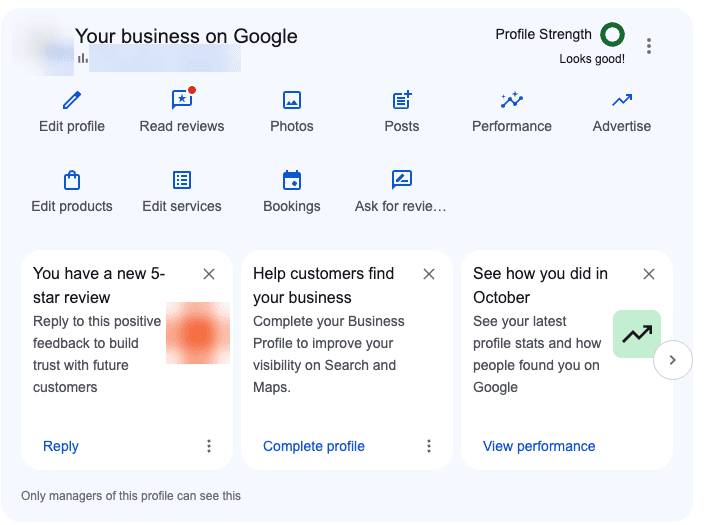
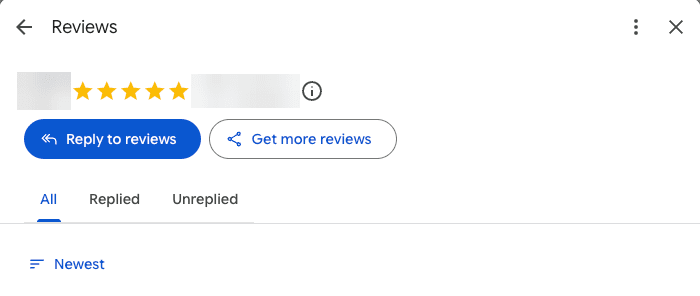
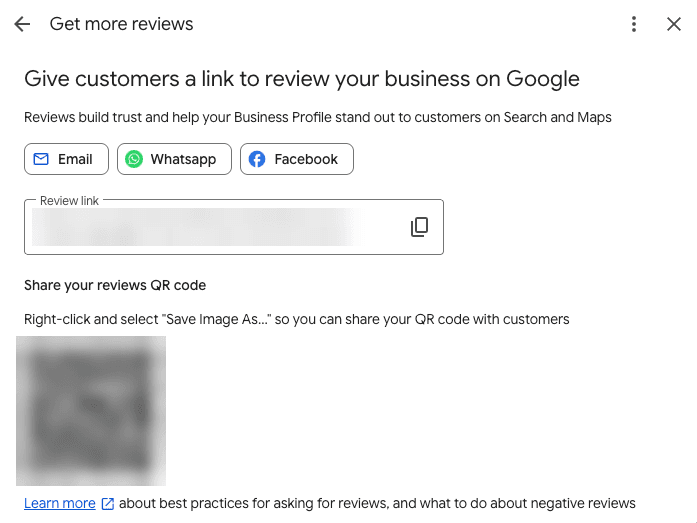
Open your reviews.
Go to your Business Profile and select Read Reviews.
Open Get more reviews.
Select Get more reviews. That's the name Google's page uses for it.
Copy the link.
Select Copy. Your review link is now copied and ready to paste.
Test it on your phone.
We'd text the link to your own phone and tap it. If your review page opens, it's ready to send.
Where to get a link for Google reviews
Here's how to find your Google review link, four ways. Each one fits a different job.
| Way | Where you get it | Good for | Worth knowing |
|---|---|---|---|
| Your Business Profile | In your profile, under Get more reviews | Getting the link straight from Google | This is Google's own link. The steps are above. |
| Our free link generator | Our free Google review link generator | Getting the link from your business name | It's free, with no sign-up. It's made from your Place ID. If that ID changes, search your business again. |
| A QR code | Google's own code, or our QR code generator for Google reviews | Paper, like a printed invoice or a card you leave behind | Google's code can only be made in a computer browser, not on a phone. To save it, right-click the code and select Save image as. |
| An old short name | Only if you made one before Google stopped them | A business that already has one | It still works, but customers no longer see it on your profile. Delete it, and you can't make it again. |
By February 2026, Google had stopped businesses from making new short names (Search Engine Roundtable's report, February 11, 2026). An old short name was one kind of short link for Google reviews, and new ones can't be made.
Why a review link stops working
When a review link stops working, check these causes first.
- The Place ID changed. Google's Place ID page says these IDs may change over time. A link built from the old ID may not open your page anymore. If you made yours with our free tool, search your business again for the new link.
- The business moved or closed. The same page says a Place ID can go out of date when a business closes or moves. After a move, get a new link and test it.
- You deleted an old short name. A deleted short name can't be made again. Send the link from your Business Profile instead.
- The link got cut off. A long link pasted into a text or an invoice can lose its last part. Paste the whole link. Then tap it on your own phone to check.
Where to send your review link
Google's help page on review links names the first five places below. Here's how to share your Google review link in each one, on a home-service job.
- Receipts. Put the link on the invoice you send when the job is closed. A printed link can't be tapped, so print the QR code on paper invoices. Whether you use a review link or QR code comes down to this: the code on paper, the link on a screen.
- Thank-you emails. Add the link to the email that thanks the customer for the job.
- The end of a chat. If a customer chats with you online, end the chat with the link.
- Your store. Print the QR code and put it up at your office, if customers come in. The same Google review QR code works on a card you leave behind.
- Email, WhatsApp or Facebook. Google also names these as ways to send a review request.
- A text after the job. Google's list doesn't name a plain text message. It's our pick for home service, not Google's advice. A text lands on the phone your customer already carries, and the link is one tap away.
Getting the customer to tap the link
Anyone can copy a review link. The hard part is getting a busy customer to tap it after your truck leaves.
At the door, the customer says "I'll give you 5 stars." Then they get busy and forget.
Keep the door line short, and say the link is coming. For example: "Thanks, that means a lot. I'll text you the link tonight. It takes a minute." Our link generator page has more on what to say when you ask.
Then the text has to get noticed. In our view, most review requests get ignored. A plain link in a text looks like every other text on the phone. So the text needs attention first. Then it can ask.
Here's what we do. When a job is marked done in your CRM, ReviewsOS texts that customer. We ask every customer the same way. The text has a photo of someone on your team holding a whiteboard with the customer's name. We add the whiteboard and write each customer's name on it. The text also carries the link to your Google review page.
Setup is one 15-minute call. ReviewsOS works with all the major CRMs, such as Jobber, Housecall Pro, ServiceTitan, QuickBooks and more. Anything else that can send a webhook or connect through an API works too. Once your CRM is connected, the texts start. On average, the first new Google reviews come in about 48 hours after that.
We recommend one request right after service and up to two gentle reminders. That's how we help you get Google reviews by text. See how it works.
I built ReviewsOS for my own insulation company first. These are our own numbers, not figures from an outside study.
About 30% of new customers typically post a review
Over 50% at some companies
35 Google reviews in 14 days, from past customers, on my own company's first run
What ReviewsOS sends after the job is closed
- Job closed. The job is marked done in your CRM.
- Text sent. Usually within an hour, and only during set hours.
- First reminder. Sent if no review comes in.
- Second reminder. Sent if there's still no review.
- Stop. No more texts once the customer reviews.
What Google allows and bans when you send the link
Are you allowed to ask for Google reviews? Yes. Google's policy lets a business encourage reviews of a real experience, as long as it offers no reward (Google's review policy, checked on November 17, 2026). The Google pages we read set no rule on when to send the link or how many reminders to send.
- Real experiences only. Google says reviews on Google Maps must reflect a real experience (Google's tips to get more reviews, checked on November 17, 2026).
- No reward for a review. No money, discount, free goods or free service in exchange for a review. Google's tips page and its policy both ban this.
- Nothing in return for changing a review. Don't offer anything to get a customer to change a review or take down a bad one. Google's tips page bans that too.
- No pressure. Google's policy says a business shouldn't require or pressure people to leave ratings or reviews while they're on its premises.
What a new review does for your profile
A new review counts toward your score, but not right away. Google says your review score may take up to 2 weeks to update after someone leaves a new review (Google's help page on review scores, checked on November 17, 2026).
Your score is the average of all the ratings on Google for your business. So the more reviews you have, the more new ones it takes to move it. See how many 5-star reviews it takes to reach your goal.
Reviews also play a part in where you show up. Google says more reviews and positive ratings can help your local ranking. One of its ranking factors is based partly on how many reviews you have (Google's local ranking tips, checked on November 17, 2026).
Our view goes one step further, and it's ours, not a Google rule. A steady pace of new reviews matters more than a big total from years ago. That pace is called review velocity. Having reviews already doesn't mean you're done. Asking after every job is how to get more Google reviews at a steady pace. Check your review pace, free.
More on finding the link inside Google
- Google My Business. Look for Business Profile instead, the name Google's help pages use. On a phone, open your profile first. If Get more reviews isn't there, copy your Google My Business review link on a computer.
- Finding the link. At a desk, you can find your Google review link in your Business Profile. Making it from your Place ID suits someone in your office who doesn't have the login.
More on sending the link, and its other forms
- Sharing the link. Most of the 6 places to share your Google review link come from Google's list. We add a text after the job and a review button on your website. Your email signature can carry it too.
- Not the listing link. A link to your listing makes the customer find Reviews and tap the stars on their own. So make a Google Maps review link that opens the review box instead.
- A short link. You don't need a Google review short link. A full link made from your Place ID, with a short thank-you, can fit in one text. If software sends your texts, skip public shorteners like bit.ly.
- Two or more locations. Each Business Profile has its own review link. You get review links for more than one location the same way, one profile at a time. We'd send each customer the link for the location that serves their area.
More on the Google review QR code
- Making and placing it. A sticker on the unit you serviced can carry a Google review QR code for your business, too. If you use a different QR code maker, ask what happens to printed codes if you stop paying.
- Link or QR code. Choosing a review link vs QR code depends on the step of the job. A code on the counter waits to be noticed. A link can go out again in a reminder.
Questions owners ask about review links
Is there a free Google review link generator?
Yes. Our link generator makes the link from your business name, free, with no sign-up. You can also copy Google's own link from your Business Profile. For paper, our free QR code tool makes a code you can print.
Why can't my customer leave a review with my link?
They may not be signed in. Customers must be signed in to a Google Account to leave a review, per Google's tips page. Reviews also aren't open everywhere. Google says they're available only in certain countries or regions and for certain business categories. If neither is the problem, tap the link on your own phone. Then check the causes under why a review link stops working.
Can I get a Google review link without a Business Profile?
Your business has to be on Google Maps, but you don't need to sign in to its Business Profile. Our link generator finds your business on Google Maps by name, with no Google login needed. Not on the list? Paste your Google Maps link or Place ID. The link opens the review box of that listing.
Can I make a review link for another business?
Yes, the same way. Our link generator works from the business name on Google Maps, so it doesn't need that business's login. Search the business, copy its link and test it.
Can I reply to the reviews that come in?
Yes, once your business is verified. Google's page on managing reviews says you must verify your business before you can reply.
What does it cost to have ReviewsOS send the link?
Sending the link yourself costs only your time. With us, $150 a month covers up to 100 review requests. A reminder doesn't count as one of your 100 requests. If you send more than that, talk to us. Your first 10 Google reviews are free, and we don't ask for a card. There's no annual contract, and you can cancel anytime. See pricing.
Sources
- Create a Google link or QR code to request reviews, Google Business Profile Help, read November 17, 2026
- Manage your business short name & URL, Google Business Profile Help, read November 17, 2026
- Place IDs, Google Maps Platform documentation, read November 17, 2026
- Manage customer reviews, Google Business Profile Help, read November 17, 2026
- Prohibited & restricted content (Maps User Generated Content Policy), Google, read November 17, 2026
- Tips to get more reviews, Google Business Profile Help, read November 17, 2026
- Understand review scores for local places & businesses, Google Business Profile Help, read November 17, 2026
- Tips to improve your local ranking on Google, Google Business Profile Help, read November 17, 2026
- Report on Google ending business short names, Search Engine Roundtable, February 11, 2026, a news report of the change, read November 17, 2026
We’ll get you 10 Google reviews for free to prove it works.
We start with the customers you've already served.
No card needed, First reviews in 48hr, 15-min setup call
Or see it first: get the text your customers will get.