Guide
Google review link vs QR code: when to use each one
The link goes where your customer has a screen. The code goes on paper that stays at the house.
No card needed, First reviews in 48hr, 15-min setup call

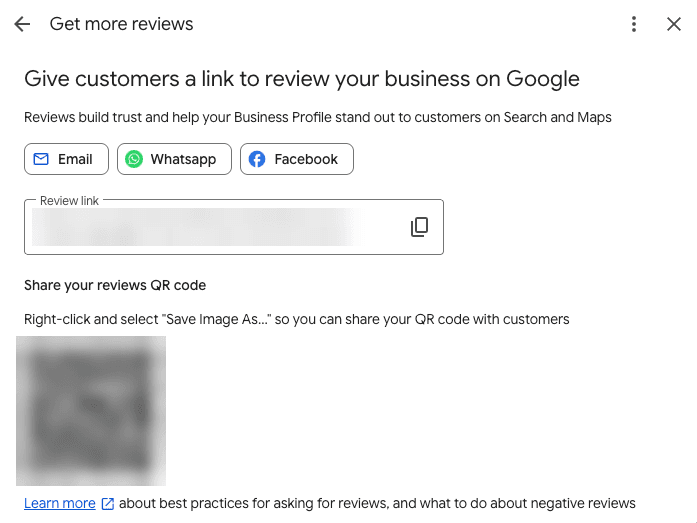
A Google review link and a Google review QR code open the same review page. Google gives you both from one share box in your Business Profile, under Read Reviews and then Get more reviews (Google's help page on review links and QR codes, checked on November 17, 2026). So the choice comes down to where your customer meets it. Send the link wherever they have a screen: a text, an email, a chat. Put the QR code on paper: the invoice, a leave-behind card, the office counter. On a home-service job, your truck leaves, so we'd lead with the link by text. You can make your Google review link or make the QR code free with our tools. Both work from your business name, with no Google login.
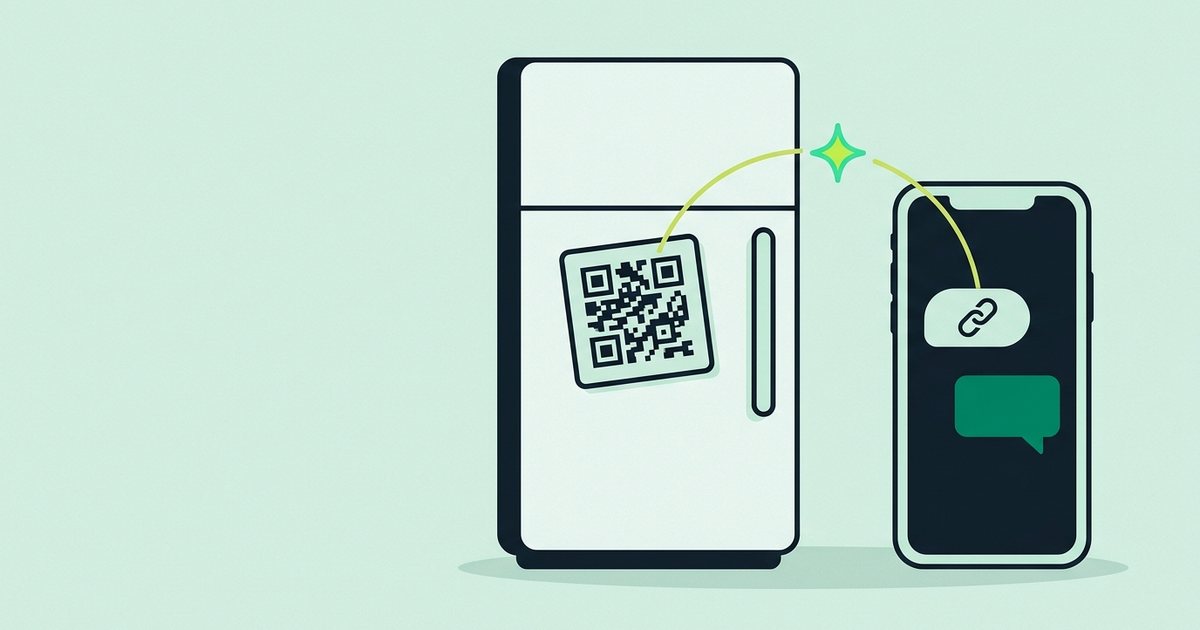
The link and the QR code, side by side
Here's how the two compare on a home-service job.
| Review link | QR code | |
|---|---|---|
| Best for | Screens: a text, an email, a chat | Paper: the invoice, a leave-behind card, the office counter |
| How the customer opens it | Taps it | Points the phone camera at it, then taps the link that shows |
| Making it in Google | Business Profile, then Read Reviews, then Get more reviews, then Copy | The same share box. Right-click the code and save it. Computer browser only for now, not a phone. |
| Making it with our free tool | From your business name, with no Google login | From your business name: a PNG, an SVG and a letter-size sign, with no sign-up |
| Can you see where it goes? | Yes, you can read the address | No, not by looking at the code |
| Can you change it later? | Yes. Send a new link in the next text. | No. Ours is static, so you reprint it. |
| Cost | Google's page names no price. Our tool is free. | Google's page names no price. Our tool is free. |
| Customer needs a Google Account | Yes | Yes |
Google's facts come from its help pages, scan steps from Apple and Google, and the code fact from DENSO WAVE. All were checked on November 17, 2026, and are listed under Sources.
Use the link anywhere your customer has a screen
On a phone or a computer, a link takes one tap. Google suggests a few spots for it: receipts, thank-you emails and the end of a chat. It also names email, WhatsApp messages and Facebook posts (Google's help page on review links and QR codes, checked on November 17, 2026).
For a home-service company, the invoice email is the easy spot. We'd add one more: the text after the job. The customer's phone stays with them long after your truck has left.
Send the link itself, not a picture of the code. A phone's camera can't scan the screen it's on.
Once you know how to create a link for Google reviews, you can paste it anywhere. Our link generator also has words for what to say when you ask.
Use the QR code on paper that stays at the house
A link printed on paper can't be tapped, and typing one in is a chore. A code turns that paper into one scan. Google suggests printing the QR code and displaying it in your store (Google's help page on review links and QR codes). A home-service job has no store. It has the paper you leave behind:
- The invoice or receipt you hand over. It's still on the counter after the truck leaves.
- A leave-behind card or the job folder. It stays with the rest of the job papers.
BrightLocal also recommends paper for the ask. It ran its Local Consumer Review Survey 2026 with 1,002 US adults on SurveyMonkey. In that report, it recommends links and QR codes on printed materials (BrightLocal's survey page, published February 11, 2026, read November 17, 2026). That's BrightLocal's advice, not a survey finding.
Before you print a stack, make a Google review QR code and scan it on two phones. Our QR tool also makes a letter-size sign to print.
What the link and the code can't do
The code has three limits worth knowing.
First, Google says its own code can, for now, only be made in a computer browser, not on a phone (Google's help page on review links and QR codes). Our QR tool works on a phone too.
Second, you can't see where a code goes by looking at it. DENSO WAVE made the QR code. It says you can't tell what data a code holds from how it looks (DENSO WAVE's FAQ, read November 17, 2026). So scan your own code before you hand it out.
Third, a printed code can't be changed. Our tool's code is static. It holds Google's review link, made from your listing's Place ID. That's the ID Google gives your place. Google's developer pages say Place IDs can change over time. One can become obsolete if a business closes or moves to a new location (Google's Place IDs page, checked on November 17, 2026). If yours changes, make a new code and reprint.
The link's main limit is paper, where nobody can tap it. A link from our tool is made from your Place ID too. If that changes, you make a new link, but you swap it in your texts with nothing to reprint.
Both share two limits. The customer must be signed in to a Google Account to post a review. They can set one up with an email address that isn't Gmail (Google's tips to get more reviews, checked on November 17, 2026). And neither one reminds anyone. A code on the counter waits to be noticed. A link can be sent again. So let the link do the follow-up.
Which one to use at each point of the job
- Job closed. Text the link to the customer's phone.
- Invoice sent. Put the link in the email. Add the code if they print it.
- Paperwork left behind. Print the code on it.
- Paying at the office. Set the code on the counter.
- No review yet. Send the link again in a reminder.
Why we send the link by text after every job
A text reaches the customer after you've gone, and it can come again.
GatherUp, a review software company, surveyed more than 1,000 US consumers in August 2025. It asked which ways of being asked for a review they find acceptable. People could pick more than one. 53% found email acceptable, and 49% face to face at the time of service. 33% found a text acceptable, and 33% printed materials such as receipts, flyers and notes (GatherUp, Beyond the Stars 2025, read November 17, 2026). That's what people said, not what they did. GatherUp rounds its numbers up, and its page doesn't mention QR codes.
Our read: no one way suits every customer. So the link goes in the text and the email, and the code goes on the paper.
Here's what ReviewsOS does today. When a job is marked done in your CRM, we text the customer. The text leads with a photo of someone on your team. They hold a whiteboard with the customer's name on it. Then comes your review link.
The text usually goes out within an hour of the close, and only during set hours. We recommend one request right after service and up to two gentle reminders. The follow-ups stop once the customer reviews.
In our view, the photo gets the text noticed. Then the link asks for the review.
Once your CRM is connected, the texts start. On average, the first new Google reviews come in about 48 hours after that. See how it works.
I built ReviewsOS for my own insulation company first. My first run there went to past customers. These are our own numbers, not figures from an outside study.
About 30% of new customers typically post a review
Over 50% at some companies
35 Google reviews in 14 days from past customers, on my first run
Questions about review links and QR codes
Is a QR code the same as a link?
They lead to the same place. Both open your Google review page, and Google gives you both from the same share box (Google's help page on review links and QR codes). Our tool's code holds Google's review link itself. The difference is that you can read a link. You can't tell what a code holds by looking at it (DENSO WAVE's FAQ).
What is the downside of a QR code for reviews?
You can't see where a code goes by looking at it (DENSO WAVE's FAQ). Our tool's printed code can't be changed. If your listing's Place ID changes, you make a new code and reprint (Google's Place IDs page). And a code waits on the counter. Unlike a text, it can't come back as a reminder.
Can I scan a QR code to leave a review?
Yes. On an iPhone, open the Camera app, hold it so the code shows, then tap the link (Apple's help page, published September 14, 2026). On a Pixel, the camera spots the code and shows a link. Google Lens works too (Google's Pixel help page). On Android, you can also use the QR scanner in Quick Settings (android.com's guide, January 20, 2025). The customer must be signed in to a Google Account to post. Before you hand any out, scan your own code on two phones. You can make one free with our QR tool.
How can I generate a Google review link?
In Google, go to your Business Profile. Select Read Reviews, then Get more reviews, then Copy (Google's help page on review links and QR codes). Or type your business name into our link generator.
Can I get a review link without logging in to my Business Profile?
Yes, with our tool. Google's own route starts in your Business Profile. Our link generator works from your business name, with no Google login needed. Our QR code tool works the same way.
Do I need a review stand or a code with my logo?
Not for jobs at the house. A stand sits on a counter, so it fits an office where customers come in to pay. For that counter, our QR tool's letter-size sign does the job. On a job, the code goes on what you leave behind: the invoice or a card. If you add your logo, set it beside the code, not over it. DENSO WAVE, the code's maker, warns users to be careful about deforming a code by laying an illustration over it (DENSO WAVE's FAQ). Before you print cards, make a Google review QR code as an SVG for the print shop.
Does Google let me ask with a link or a code?
Yes. Google says you can share a review request link or QR code to encourage reviews (Google's page on managing reviews, checked on November 17, 2026). It bans any reward for a review. Google calls that fake engagement and says it's strictly prohibited (Google's help page on review links and QR codes). Its review policy also bans selectively asking customers for positive reviews (Google's review policy). We ask every customer the same way.
Sources
- Create a Google link or QR code to request reviews, Google Business Profile Help, read November 17, 2026
- Tips to get more reviews, Google Business Profile Help, read November 17, 2026
- Manage customer reviews, Google Business Profile Help, read November 17, 2026
- Prohibited & restricted content (Maps User Generated Content Policy), Google, read November 17, 2026
- Place IDs, Google Maps Platform documentation, read November 17, 2026
- FAQ, DENSO WAVE, the maker of the QR code, read November 17, 2026
- Scan a QR code with your iPhone or iPad, Apple Support, published September 14, 2026, read November 17, 2026
- Scan QR codes with your Pixel phone, Pixel Phone Help, read November 17, 2026
- How do you scan QR codes on Android?, android.com, January 20, 2025, read November 17, 2026
- Local Consumer Review Survey 2026, BrightLocal, published February 11, 2026, read November 17, 2026
- Beyond the Stars 2025, GatherUp, a survey of more than 1,000 US consumers in August 2025, read November 17, 2026
We’ll get you 10 Google reviews for free to prove it works.
We start with the customers you've already served.
No card needed, First reviews in 48hr, 15-min setup call
Or see it first: get the text your customers will get.