Google review links
How to make a Google Maps review link, then test it before you send it
Two ways to make it, a test on your own phone, and what your customer needs to post.
No card needed, First reviews in 48hr, 15-min setup call

A Google Maps review link takes your customer straight to where they leave a Google review for your business. You can get one two ways. Copy it from your Business Profile: select Read Reviews, then Get more reviews, then Copy (Google's help page on review links). Or make it from your Place ID with our free tool, with no sign-in. Test it on your own phone before a customer gets it. To post, your customer must be signed in to a Google Account.
Two ways to make the link
Pick the way that fits who is making the link.
| Way | Who can make it | Sign-in to make it | QR code |
|---|---|---|---|
| Business Profile (Get more reviews) | Someone who can open your Business Profile | Yes, to your profile | Google makes one, but only in a computer browser, not on a phone |
| Place ID link (our free tool) | Anyone on your team | None | Our free QR code tool makes one, as a PNG or SVG |
The first way and its QR code follow Google's help page on review links, checked on November 17, 2026. The second way is the link our free tool builds.
Copy the link from your Business Profile
These are Google's steps, from Google's help page on review links. For more on the menus, see where the review link sits in Google My Business.
Open your profile.
Go to your Business Profile.
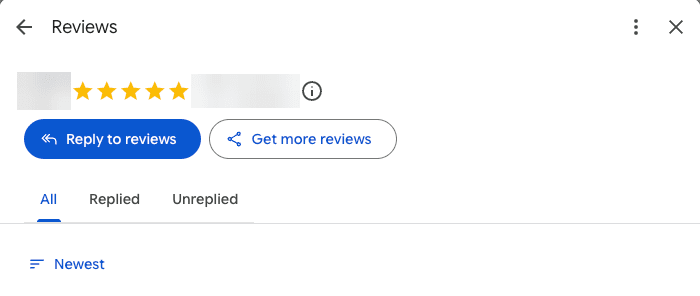
Open your reviews.
Select Read Reviews.
Find the link.
Select Get more reviews.
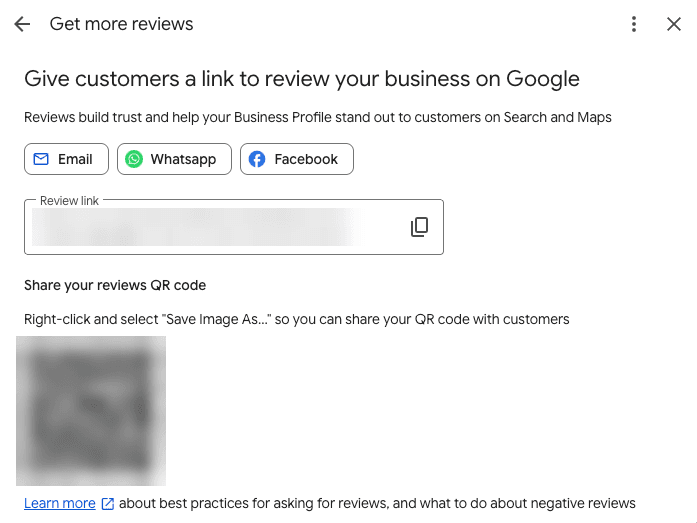
Copy it.
Select Copy. Google says you can send it by email, a WhatsApp message or a Facebook post. It also suggests putting it on your receipts.
Make the link from your Place ID, no sign-in
A Place ID is Google's code for one place on its map. Google's developer page describes it as a text code that identifies one place and no other (Google's page on Place IDs).
Our free tool finds your business on Google and builds the link from its Place ID. Anyone on your team can make it, with no sign-in to your profile. Make your free Google review link.
If the search doesn't find you, add your city to the name. Or, on a computer, open your listing in Google Maps and copy the long link from the address bar. Then paste it into the tool.
This link format is what our tool builds. Google's help pages don't describe it.
The link our free tool builds
- Address:
- search.google.com/local/writereview?placeid=
- After the = sign:
- your business's Place ID
- Who can make it:
- anyone on your team
- Sign-in to make it:
- none
Test the link on your own phone
A link that doesn't work costs you the review. So test it once, before your first customer gets it. Our free tool has a Test it button for this.
Text it to yourself.
Send the link to your own phone, the same way your customer will get it.
Tap it.
Make sure it opens a review for your business, not one with a similar name.
See where it opens.
The Google pages we read don't say if the link opens the Google Maps app or the browser. So check on your phone. If you can, check on a second phone too.
Close it without posting.
You're checking the link, not reviewing your own business.
What your customer needs to post a review
Your customer must be signed in to a Google Account to post a review. They can set one up with an email address that isn't Gmail (Google's tips to get more reviews). So a customer with no Google Account has to make one first.
They can't post an anonymous review. All reviews are public, and anyone can find them (Google Maps Help on reviews).
If the link won't open on their phone, they can still review you in the Google Maps app. These are the Android and iPhone steps from Google Maps Help on reviews:
- Open the Google Maps app and sign in to a Google Account.
- Search for your business, or tap it on the map.
- At the bottom, tap your business's name or address.
- At the top, tap Reviews.
- Tap the 5 empty stars to give a rating.
Send the link after every job
Send the link to every customer, after every job, and ask for an honest review. Put it where they'll see it: the text after the job, an email or the receipt.
At the door they say "I'll give you 5 stars." Then they get busy and forget. So say: "Thanks, that means a lot. I'll text you the link tonight. It takes a minute." Our free tool has more on what to say when you ask.
Google says more reviews and positive ratings can help your business's local ranking (Google's local ranking tips).
Our guide on ways to share the link lists more places to put it. For a shorter link in your texts, see our guide to the Google review short link.
Have the text go out when the job is done
A link only brings reviews when someone sends it. On a busy day, that's easy to skip.
ReviewsOS texts each customer when the job is marked done in your CRM. The text has a photo of someone on your team holding a whiteboard with the customer's name on it. A link to your Google review page comes with it.
The text usually goes out within an hour of the job closing, and only during set hours. We recommend one request right after service and up to two gentle reminders. The follow-ups stop once the customer reviews.
Setup is one 15-minute call. See how it works.
These are our own numbers, not figures from an outside study.
About 30% of new customers typically post a review
Over 50% at some companies
35 Google reviews in 14 days, from past customers, on the first run at my own insulation company
Mistakes that cost you the review
A good link can still lose the review in a few ways.
- Sending your listing, not the review link. A link to your listing makes the customer find Reviews and tap the stars on their own.
- Sending it untested. Run the phone test above once before the first text. It also catches a link to a business with a similar name.
- Offering a discount or a freebie for a review. Google strictly prohibits free or discounted goods or services in exchange for reviews (Google's tips to get more reviews).
- Trying to make a link that opens on 5 stars. Google's policy for reviews on Maps says to ask without trying to influence the rating (Google's review policy). Let your customer pick the stars.
Google Maps review link questions
Do I have to sign in to make the link?
From your Business Profile, yes. With our free tool, no: it builds the link from your Place ID. Your customer still signs in to post the review.
Can I make a review link without a Business Profile?
Your business needs a listing on Google Maps, because the link opens the review box of that listing. If our tool finds your business, the listing is there, and you don't need to sign in to it. If your business isn't on Google yet, Google says you can add or claim it at no charge (Google's help page on adding a Business Profile). Our guide on how to get a Google review link covers more ways to get one.
Why can't my customer write a review on Google Maps?
Start with the sign-in. Google says a customer must be signed in to a Google Account to leave a review. They can set one up with an email address that isn't Gmail (Google's tips to get more reviews). Google Maps Help adds that a review can't be anonymous (Google Maps Help on reviews). If they're signed in and still stuck, they can use the Google Maps app steps above.
Does a Google Maps review link stop working?
The Google pages we read give the link no end date. Google does say a Place ID can change over time. Its developer page also advises refreshing Place IDs that were stored more than 12 months ago (Google's page on Place IDs). So we'd test your link again once a year. If it stops opening your business, make it again and test it.
Can I turn the link into a QR code?
Yes. Google makes a review QR code from your Business Profile, in a computer browser only. Or make a Google review QR code from your link with our free tool.
I have more than one location. What do I do?
Search for each location in our tool and make a link for each one. Then test each link on your phone.
Sources
- Create a Google link or QR code to request reviews, Google Business Profile Help, read November 17, 2026
- Tips to get more reviews, Google Business Profile Help, read November 17, 2026
- Prohibited & restricted content (Maps User Generated Content Policy), Google, read November 17, 2026
- Add, edit, or delete Google Maps reviews & ratings, Google Maps Help, read November 17, 2026
- Tips to improve your local ranking on Google, Google Business Profile Help, read November 17, 2026
- Place IDs, Google Maps Platform, read November 17, 2026
- Add or claim your Business Profile, Google Business Profile Help, read November 17, 2026
We’ll get you 10 Google reviews for free to prove it works.
We start with the customers you've already served.
No card needed, First reviews in 48hr, 15-min setup call
Or see it first: get the text your customers will get.