Google review link
Your Google My Business review link is in your Business Profile
Google renamed it, so here's the path to the link and what to do once you've copied it.
No card needed, First reviews in 48hr, 15-min setup call

Your Google My Business review link is in your Google Business Profile. Go to your Business Profile and select Read Reviews. Then select Get more reviews, and select Copy (Google's help page on review links, checked on November 17, 2026). The link makes it easier for customers to leave a review on your profile. Our main guide to the link for Google reviews covers the other ways to get it.
Google My Business is now Google Business Profile
It's the same thing with a new name. Google's own definition says: "Google Business Profile was formerly known as Google My Business." (Google Ads Help)
So look for Business Profile, not My Business. Google's help pages use the new name, and so do the steps below.
The profile itself costs nothing. Google says creating a Business Profile and listing your business on Google is free (Google Business Profile).
Copy the review link on a computer
Steps 1 and 2 follow Google's page on finding your business. Steps 3 to 5 follow its help page on review links. Every button name below is Google's.
Sign in.
Use the Google Account tied to your profile. Google says you must be signed in to that account to find your profile (Google's page on finding your business). If you knew it as Google My Business, its home is now Google's Business Profile page.
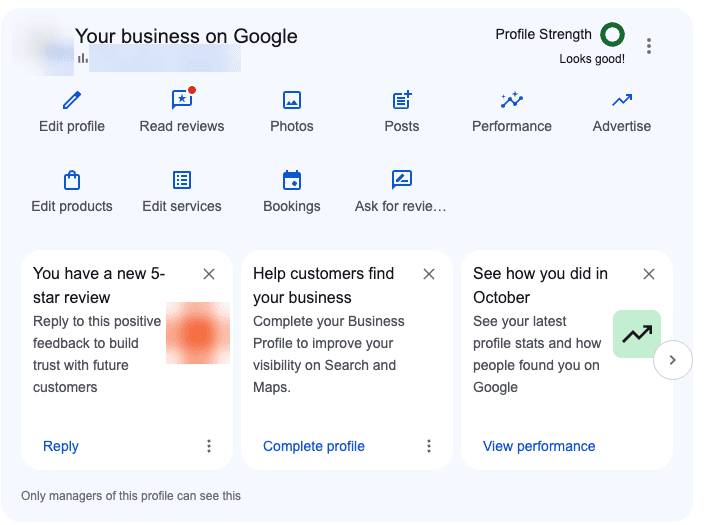
Go to your Business Profile.
The same Google page says to search Google for my business, or for your business name and city.
Select Read Reviews.
Google's path to the link runs through your reviews.
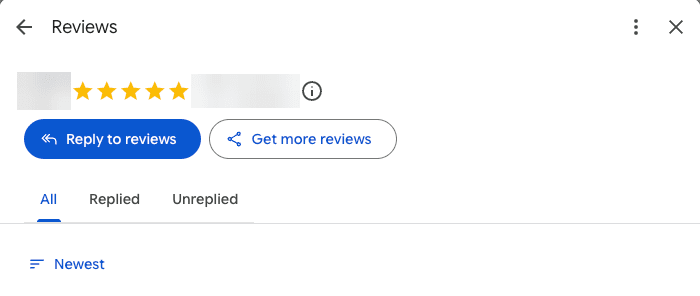
Select Get more reviews.
Google shows it with the Share icon. From here you can share the link or a QR code, or use the other options.
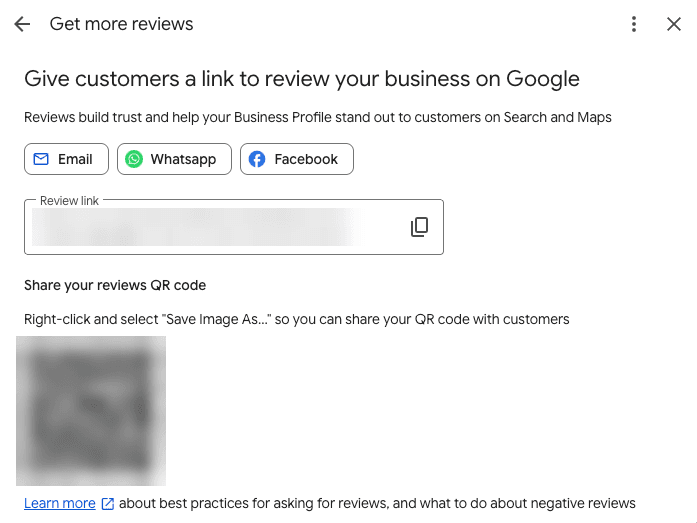
Select Copy.
That copies your review link. Google can make a review QR code here too, but only in a computer browser, not on a phone. Before any customer gets the link, we'd text it to your own phone and tap it.
On your phone, open your profile first
Google's review link page gives one path and no phone steps. Its page on finding your business gives the way to reach your profile on a phone.
- Sign in with your profile's Google Account, as in step 1. Then search Google for my business, or your business name and city.
- Or open the Google Maps app and tap Business at the bottom right.
- With more than one business, tap the Down arrow at the top. Then select the business you want.
- On your profile, look for Get more reviews. That's the button's name in Google's steps. Google's help pages on the link give no phone steps.
If you can't find it on your phone, copy the link on a computer. Or get your link by business name with our free tool. It needs no Google login. Google's QR code is computer only, so on a phone, use our free QR code maker. Our guide to other ways to find your review link covers each device.
Two different links are called a review link
Google uses the words "review link" for two things. Only one of them asks a customer for a review.
| The link that asks for a review | The link to one review | |
|---|---|---|
| What it does | Makes it easier for a customer to leave a review on your profile | Points to one review already on your profile |
| Where you find it | Read Reviews, then Get more reviews, then Copy | Under Link to share, on that review |
| What it's for | Asking a customer for a review | Showing a review to new customers |
Send the first one after a job. Sources: Google's pages on review links and managing reviews, checked on November 17, 2026.
Send the link once the job is closed
Google's pages don't set a time to send it. We'd send it once the job is done and closed, while the work is still fresh.
Google suggests adding the link to receipts and thank-you emails, or to the end of a chat. It names email, WhatsApp messages and Facebook posts as ways to share it (Google's help page on review links).
For a home-service job, a text after the job closes is the easy spot. The link lands on the phone your customer already has in hand.
Birdeye, a review software company, measured clicks on review requests. Its State of Online Reviews 2024 used data from more than 150,000 businesses that use Birdeye, from 2023. Review request texts had a 37% click-through rate, and emails had 7% (Birdeye, State of Online Reviews 2024, read November 17, 2026). Those are clicks on the link, not reviews posted.
Your customer has to be signed in to a Google Account to post a review (Google's tips to get more reviews).
Our free link maker has ideas on what to say when you ask.
Google's rules for asking with the link
Google lets you ask. Its tips page says you can ask customers to visit a Google link or scan a QR code (Google's tips to get more reviews, checked on November 17, 2026). Its review policy sets a few limits (Google's review policy, checked on November 17, 2026).
- Never pay for a review. Google bans offering money, discounts, free goods or free services in exchange for one.
- Don't require or pressure anyone on the spot. The policy says merchants shouldn't require or pressure people to leave a rating or review while on the premises.
- Ask for reviews of a real experience. Google says reviews must reflect a genuine experience (Google's help page on review links).
- No reviews from people who work for you. Google says a conflict of interest can include current or former employment.
Google's review policy says fake engagement isn't allowed and will be removed. Google can also restrict a profile for breaking its policies (Google's page on Business Profile restrictions). A restricted profile can't get new reviews or ratings for a set period. Its existing reviews and ratings can be unpublished for a set period. It can also show customers a warning that fake reviews were removed. Google says it emails the owner if it plans to restrict a profile.
No fake reviews. We ask every customer the same way.
The link, texted for you after every job
We send the link for you. When a job is marked done in your CRM, your customer gets a text. It has a photo of someone on your team holding a whiteboard with the customer's name. Then it asks for the review, with the link to your Google review page.
The text usually goes out within an hour of the job closing, and only during set hours. We recommend one request right after service and up to two gentle reminders. The follow-ups stop once the customer reviews.
Setup is one 15-minute call. Once your CRM is connected, the texts start. On average, the first new Google reviews come in about 48 hours after that.
$150 a month covers up to 100 review requests. A reminder doesn't count as one of the 100. See how it works, or see pricing.
I built ReviewsOS for my own insulation company first. These are our own numbers, not figures from an outside study.
About 30% of new customers typically post a review
Over 50% at some companies
35 Google reviews in 14 days, my first run, from past customers of my insulation company
Questions owners ask about the Google My Business review link
How does a customer leave a Google review without the link?
On a computer, they sign in to Google Maps and find your business. On the left, they scroll and click Write a review. Then they click the stars to score it (Google Maps Help). Google says all reviews are public, and anyone can find them.
How do I find the URL for my Google reviews?
The URL that asks for a review is the link you copy at Get more reviews. Google's help page doesn't show what that link looks like. So test it first: text it to your own phone and tap it. To share one review that's already posted, use the link under Link to share on that review (Google's page on managing reviews).
Can I get the review link without signing in to the profile?
Not with Google's steps. Google says you must sign in to the Google Account tied to your profile to find it (Google's page on finding your business). Our free Google review link maker needs only the business name and no Google login. So someone in your office can make the link too.
Is the Google My Business review link free?
Yes. You copy it from your Business Profile, and Google says creating that profile is free. Our link maker costs nothing too.
How do I make a QR code from the review link?
Google offers a QR code at the same step as the link, in a computer browser only. To save it, right-click it and choose Save image as (Google's help page on review links). On a phone, use our free Google review QR code maker.
Do more reviews help me show up on Google?
They can. Google says local results are mainly based on relevance, distance and popularity. It also says more reviews and positive ratings can help your local ranking (Google's local ranking tips). After a new review, your review score can take up to 2 weeks to update (Google's page on review scores). In our view, a steady pace of new reviews matters more than an old total. Check your review pace, free.
Sources
- Create a Google link or QR code to request reviews, Google Business Profile Help, read November 17, 2026
- Business Profile: Definition, Google Ads Help, read November 17, 2026
- Google Business Profile, Google, read November 17, 2026
- Find your business on Google, Google Business Profile Help, read November 17, 2026
- Manage customer reviews, Google Business Profile Help, read November 17, 2026
- Tips to get more reviews, Google Business Profile Help, read November 17, 2026
- Prohibited & restricted content (Maps User Generated Content Policy), Google, read November 17, 2026
- Business Profile restrictions for policy violations, Google Business Profile Help, read November 17, 2026
- Add, edit, or delete Google Maps reviews & ratings, Google Maps Help, read November 17, 2026
- Tips to improve your local ranking on Google, Google Business Profile Help, read November 17, 2026
- Understand review scores for local places & businesses, Google Business Profile Help, read November 17, 2026
- State of Online Reviews 2024, Birdeye (data from more than 150,000 businesses that use Birdeye, from 2023; PDF hosted by MarTech Series), read November 17, 2026
We’ll get you 10 Google reviews for free to prove it works.
We start with the customers you've already served.
No card needed, First reviews in 48hr, 15-min setup call
Or see it first: get the text your customers will get.