Google review link
How to share your Google review link: 6 places your customer sees it
Copy it once from Google, then put it where your customer looks after the job.
No card needed, First reviews in 48hr, 15-min setup call

To share your Google review link, copy it from your Google Business Profile first. Select Read Reviews, then Get more reviews, then Copy. Then put the link where your customer looks after the job. Google suggests your receipts, your thank-you emails, the end of a chat and a printed QR code (Google's help page on review links). For a home-service company, start with a text once the job is closed.
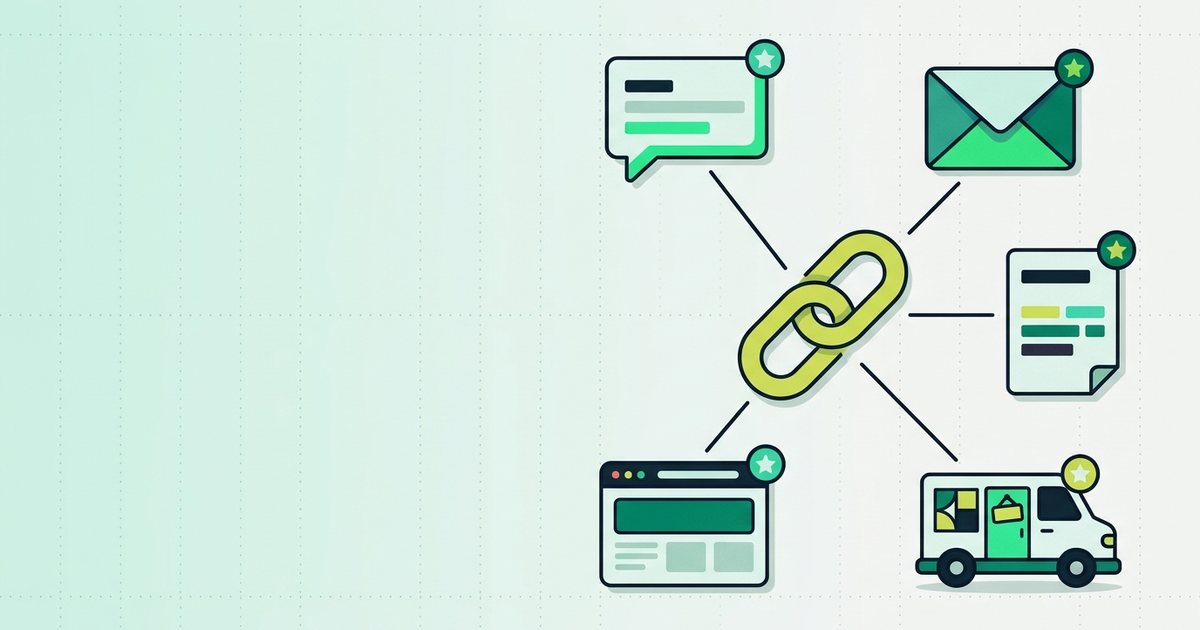
Copy your review link first
Your review link sits in your Google Business Profile. Copy it once, and you can use it in every place below. These steps follow Google's help page on review links, checked on November 17, 2026.
Open your profile.
Go to your Business Profile on Google.
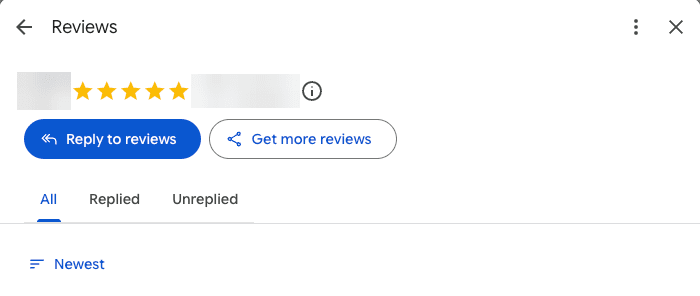
Open your reviews.
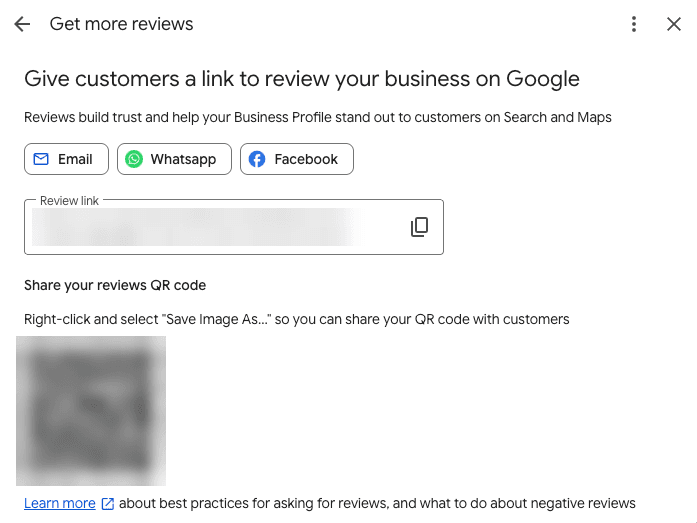
Select Read Reviews, then select Get more reviews.
Copy the link.
Select Copy. The link is now ready to paste.
Can't see those menus? Skip them and make your free Google review link from your business name. You don't need to sign in to your Business Profile for it. Prefer Google's menus? Our guide shows how to find your Google review link first, and our main guide to the Google link for reviews covers the rest.
1. Text it once the job is closed
A text puts your link on the phone your customer already carries. Send it when you close the job in your job software.
We recommend one request right after service and up to two gentle reminders. For more words to use, see what to say when you ask.
Start with the customer's first name and your company name, so they know who it's from. Put the link last, on a line of its own. A text you can copy, line by line:
- Hi [first name], it's [your name] from [company name].
- Thanks for choosing us today.
- Would you leave us a quick Google review? It takes a minute.
- [your review link]
2. Put it on the invoice or receipt
Google suggests putting your review link on your receipts (Google's help page on review links). For a home-service company, that's the invoice the customer pays for the job.
If your job software lets you edit the invoice or receipt text, paste the link there. Add one short line above it that asks for a review.
The customer reads the invoice to pay it, so the link is right in front of them.
A link on a paper invoice can't be tapped. Print the QR code there instead (see place 4).
3. Add it to your thank-you email
Google also suggests adding the link to your thank-you emails (the same Google page). If your office sends one after the job, put the link at the bottom, under a line that asks for a review.
Your email signature can carry it too. Under your name, add the words Leave us a Google review, and make them the link. Then every email you send carries it.
4. Print the QR code on the paper you leave behind
Google suggests printing the QR code and showing it in your store. Your work happens at the customer's house, not in a store. So put the code on the paper the customer keeps: a leave-behind card, the job folder or a printed invoice.
The QR code sits in the same Get more reviews box as the link. For now, Google says review QR codes can only be made in a computer browser, not on a phone (Google's page on review QR codes). On the computer, right-click the QR code, then select Save image as.
You can also use our free QR code generator for Google reviews. Our guide to the Google review QR code has more on where to put it.
5. Send it in a chat, a WhatsApp message or a Facebook post
Google names these too. It suggests adding the link at the end of a chat. It also lists email, WhatsApp messages and Facebook posts as ways to send a request (Google's help page on review links). Pick the ones your customers already use:
- Chat: at the end of a chat with a customer, once their question is answered.
- WhatsApp: in a message to customers who already talk to you there.
- Facebook: in a post on your business page, where your followers can see it.
6. Add a review button to your website
Google's help page doesn't list your website. We add it anyway. A past customer who comes back to your site can find the link there.
Put a button on your contact page or your thank-you page. Make the button open your review link. Use plain words on it, like Review us on Google.
A button asks for a new review. To show a new customer a review you already have, you need a different link: the link to one review, below.
Where each place reaches the customer
Each place puts the link in front of the customer at a different moment.
| Place | When the customer sees it | Who suggests it |
|---|---|---|
| A text after the job | On their phone, after the job | Our pick |
| The invoice or receipt | When they pay | |
| The thank-you email | When they open it | |
| A printed QR code | When they pick up the card or folder | |
| A chat, WhatsApp or Facebook | During the chat, or when they see the message or post | |
| Your website | When they visit your site | Our pick |
Google's suggestions are from Google's help page on review links, checked on November 17, 2026.
Check these before you send it
Run these checks once, before the first customer gets the link:
- Test it. Open the link on your own phone first. Check that it shows your business.
- More than one location? Test one link per location, and check that each one shows the right location.
- Know the sign-in rule. Customers must be signed in to a Google Account to leave a review (Google's tips to get more reviews).
Want to know if your link opens the Google Maps app or the browser? Our guide shows how to make a Google Maps review link and test it on your phone. For texts and printed cards, see our guide on a shorter review link.
A link to a review is a different link
Google separates two links (Google's page on managing reviews). A review request link asks a customer for a new review. A direct link to one review shows that review to new customers.
| Link | What it does | Who gets it | Where you get it |
|---|---|---|---|
| Review request link | Asks for a new review | Your customer, after the job | Business Profile: select Read Reviews, then Get more reviews, then Copy |
| Link to one review | Shows a review you already have | Someone thinking of hiring you | Google Maps: search your business name and city, then select Reviews. Next to the review, select More, then Share review, then Send a link. |
Steps from Google's help pages on review links and managing reviews, checked on November 18, 2026.
Put the link to one review to work when you quote a new job. Paste it into the quote you send, so the customer can read a real review before deciding.
What Google allows and bans when you share the link
We ask every customer the same way. Google's review policy sets these lines for the ask, checked on November 17, 2026:
- Allowed: asking for a review of a real job. Google says reviews should reflect a genuine experience.
- Banned: money, a discount, free goods or a free service in exchange for a review. That covers changing a review or taking down a bad one too (Google's help page on review links).
- Banned: requiring or pressuring anyone to leave a rating or write a review.
Most review requests get ignored
At the door they say "I'll give you 5 stars." Then they get busy and forget. So say: "Thanks, that means a lot. I'll text you the link tonight. It takes a minute."
That covers the door. The text has its own problem. In our view, a plain text like the one in place 1 looks like every other text on the phone.
So the text has to get the customer's attention first. Then it asks for the review.
Have the link sent after every job
Every place above works by hand. But someone has to send the link after every job, on the busy days too.
With ReviewsOS, it goes out on its own. When a job is closed in your job software, the customer gets a text. It usually goes out within an hour, and only during set hours.
The text leads with a photo of someone on your team holding a whiteboard with the customer's name. Then it asks for the review and gives your link. The reminders stop once the customer reviews.
$150 a month covers up to 100 review requests. A reminder doesn't count as one of the 100. Setup is one 15-minute call.
ReviewsOS works with all the major CRMs, such as Jobber, Housecall Pro, ServiceTitan, QuickBooks and more. Anything else that can send a webhook or connect through an API works too.
See how it works, see which CRMs connect, or see pricing.
Once your CRM is connected, the texts start. On average, the first new Google reviews come in about 48 hours after that.
We text past customers a few at a time. I built ReviewsOS for my own insulation company first. My first run there went to past customers. It brought 35 Google reviews in 14 days.
These are our own numbers, not figures from an outside study.
About 30% of new customers typically post a review
Over 50% at some companies
15 min one setup call
Questions about sharing your review link
How do I text someone my Google review link?
Copy the link from your Business Profile, then paste it into a text after the job. Open with their first name, ask in one plain line, and put the link last.
Can I get the link on my phone?
Google's help page gives one set of steps for the link, with no separate steps for a phone. The one part it says needs a computer is the QR code (see place 4). If the menus don't show on your phone, make your free Google review link instead. Type your business name, then copy the link into your text.
Does sharing the link help my Google ranking?
Google's ranking tips talk about reviews, not the link. Google says more reviews and positive ratings can help your local ranking. Prominence, one of its ranking factors, is based partly on how many reviews you have (Google's local ranking tips). We'd add one thing: a steady pace of new reviews matters, not only a big total. Check your review pace, free.
Sources
- Create a Google link or QR code to request reviews, Google Business Profile Help, read November 17, 2026
- Tips to get more reviews, Google Business Profile Help, read November 17, 2026
- Manage customer reviews, Google Business Profile Help, read November 17, 2026
- Tips to improve your local ranking on Google, Google Business Profile Help, read November 17, 2026
- Maps User Generated Content Policy, Google, read November 17, 2026
We’ll get you 10 Google reviews for free to prove it works.
We start with the customers you've already served.
No card needed, First reviews in 48hr, 15-min setup call
Or see it first: get the text your customers will get.