Google review link
How to find your Google review link: 3 ways
On a computer, on your phone, or without signing in to your Business Profile.
No card needed, First reviews in 48hr, 15-min setup call

Your Google review link is in your Google Business Profile. On a computer, sign in and go to your profile. Select Read Reviews, then Get more reviews, then Copy (Google's help page on review links, checked on November 17, 2026). On your phone, open the Business tab of the Google Maps app and look for Get more reviews. Without signing in to your profile, make the link from your Place ID with our free Google review link generator. A review link opens the review box for your business, so the customer doesn't have to search for you first.
Three different links get called a "review link." The first asks a customer to write a review. That's the one the 3 ways below find.
The second opens one review that's already on your profile, so you can share it. The third leads to a review you left yourself, on another business. Steps for those two are in the questions at the end.
Way 1: Copy it from your Business Profile on a computer
Best when you're at a desk. These are the steps for the review link in your Business Profile, as Google gives them (Google's help page on review links).
Sign in.
Use the Google Account linked to your Business Profile. Google says you must sign in to that account to find your profile (Google's page on finding your business).
Go to your Business Profile.
Search Google for "my business", or for your business name and city.
Open your reviews.
Select Read Reviews.
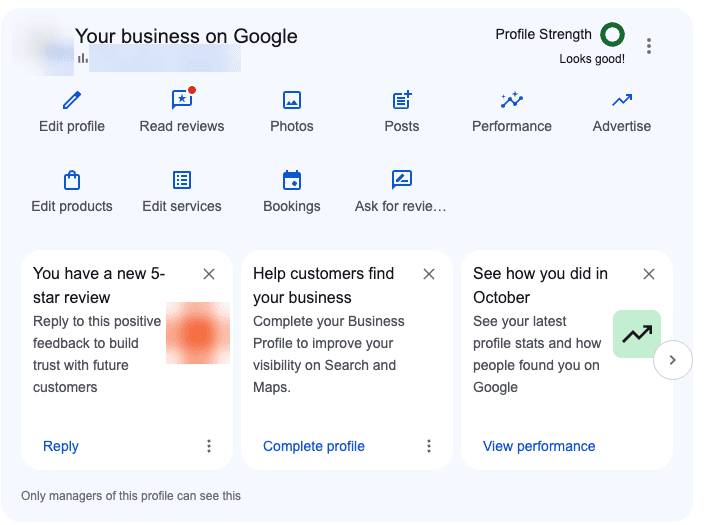
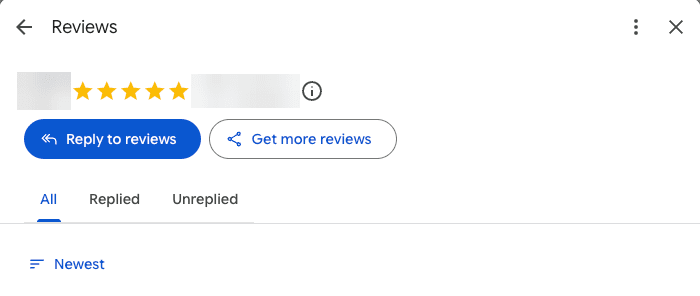
Find the request link.
Select Get more reviews.
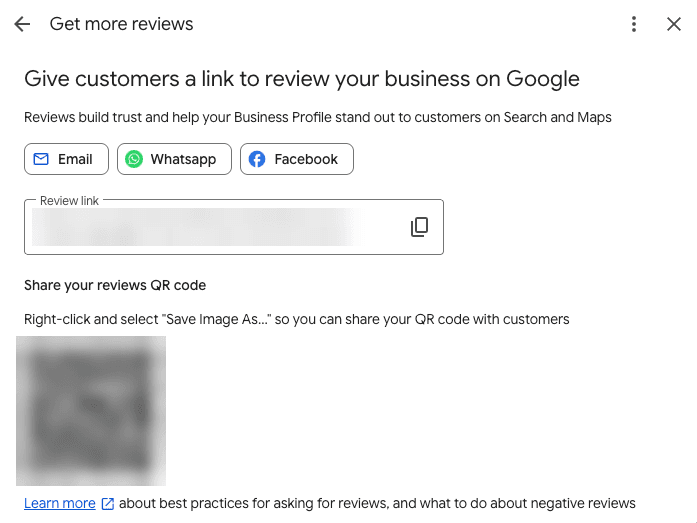
Copy it.
Select Copy, and your review link is copied.
Way 2: Open your profile in the Google Maps app
Best between jobs, when your phone is all you have. Google's help pages give the first taps, up to the Business tab (Google's page on finding your business; Google's page on editing your profile). They don't list the taps after it.
- Open the Google Maps app, signed in with the account linked to your profile.
- At the bottom right, tap Business.
- If you have more than one business, tap the Down arrow at the top. Then select the one you want.
- Look for Get more reviews and copy the link. That's the button name from Google's computer steps. If you don't see it on your phone, use Way 1 on a computer, or Way 3.
Way 3: Make it from your Place ID, without Business Profile access
Most places on Google Maps have a Place ID, including businesses. Google calls it a code that "uniquely identifies a place" (Google's Place ID page, checked on November 17, 2026). A review link can be made from it.
This way needs no sign-in to your Business Profile. So it suits someone in your office who doesn't have the login. It works for any business on Google Maps, a client's included. And it's the fallback when Ways 1 and 2 don't show the button.
Type your business name into our free Google review link generator and copy your link. If the search doesn't find you, paste your Google Maps link or Place ID instead.
One thing to watch: Google says Place IDs may change over time. If yours changes, search your business in the generator again to get the new link.
The 3 ways side by side
Pick the way that fits where you are.
| Way | Where you do it | Sign in to your profile? | Watch for |
|---|---|---|---|
| 1. Business Profile | A computer browser | Yes | Sign in with the account linked to your profile |
| 2. Google Maps app | Your phone | Yes | Google's steps stop at the Business tab |
| 3. Place ID | Any browser, phone or computer | No | If your Place ID changes, make the link again |
Steps from Google's help pages on review links, finding your business and Place IDs, checked on November 17, 2026.
Check the link before you send it
Open the link yourself before the first customer gets it. Do it on your own phone. It should open the review box for your business. The generator has a "Test it" button for this.
Your customer has to be signed in to a Google Account to leave a review (Google's tips to get more reviews, checked on November 17, 2026).
Then keep that one link and use it every time. That's our advice, not a Google rule. Every customer gets the same ask, and there's only one link to check.
For what comes after you find it, see your Google review link, start to finish. Or let us send it for you after every job.
Review link questions
How do I get the link to one Google review?
Open Google Maps and search for your business name and city. Select Reviews. Next to the review you want, select More, then Share review. In the Share window, select Send a link. Then select COPY LINK (Google's page on managing reviews).
How do I find a Google review I left?
On a computer, open Google Maps and click Menu at the top left. Click Your contributions, then Reviews. On an Android phone, open the Google Maps app and tap Contribute. Then tap View your profile (Google Maps Help on reviews).
How do I make a QR code for my review link?
Google makes one from your Business Profile, but only in a computer browser, not on a phone (Google's help page on review links). On a phone, use our free Google review QR code maker. Type your business name, then download your code.
How do I send someone my Google review link?
Paste it into a message. Google suggests adding it to your receipts and thank-you emails, and to the end of a chat. It also names email, WhatsApp and Facebook posts (Google's help page on review links). Our guide shows where to put your Google review link, place by place. We'd send it by text after the job, so it's right there on their phone. Our free link maker also has what to say when you ask.
Sources
- Create a Google link or QR code to request reviews, Google Business Profile Help, read November 17, 2026
- Find your business on Google, Google Business Profile Help, read November 17, 2026
- Edit your Business Profile, Google Business Profile Help, read November 17, 2026
- Tips to get more reviews, Google Business Profile Help, read November 17, 2026
- Manage customer reviews, Google Business Profile Help, read November 17, 2026
- Add, edit, or delete Google Maps reviews & ratings, Google Maps Help, read November 17, 2026
- Place IDs, Google Maps Platform documentation, read November 17, 2026
We’ll get you 10 Google reviews for free to prove it works.
We start with the customers you've already served.
No card needed, First reviews in 48hr, 15-min setup call
Or see it first: get the text your customers will get.