Guide
How to get Google reviews by text message after every job
What to put in the text, when to send it, and when to stop.
No card needed, First reviews in 48hr, 15-min setup call

To get Google reviews by text, copy your review link from your Google Business Profile. Or make your free Google review link. Write a short text: their first name, who's texting, the job, one plain ask, and the link last. Send it soon after the job is closed. Send up to two reminders, and stop once they review.

Step 1: Get your Google review link
When this step is done, you'll have your review link, ready to paste into a text. The link comes from your Google Business Profile. If your profile isn't set up yet, start with how a business gets Google reviews. These steps follow Google's help page on review links, checked on November 17, 2026.
Open your profile.
Go to your Business Profile.
Find the link.
Select Read Reviews, then select Get more reviews.
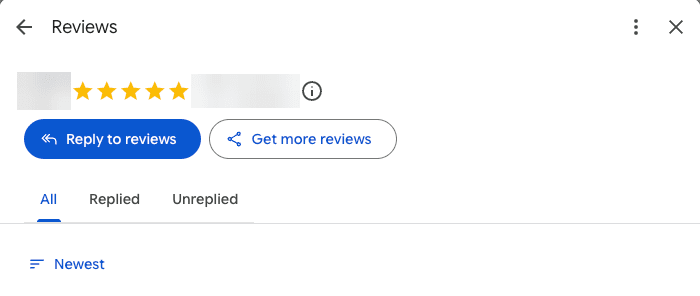
Copy it.
Select Copy to copy your review link.
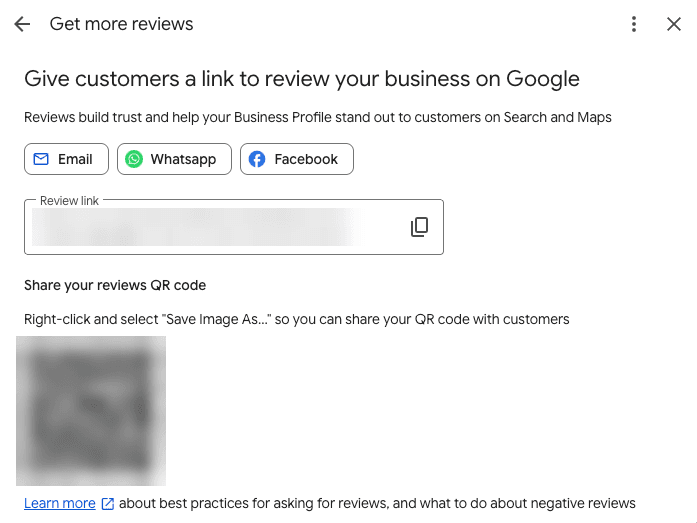
Google's page gives these steps for a computer. It gives no steps for a phone. Its review QR codes can only be made in a computer browser, too.
On your phone between jobs, our free link maker makes the link from your business name. It needs no Google login.
Before you send the link to anyone, open it on your own phone. That way you know it works before a customer taps it.
Step 2: Write a short text with the job in it
Next, you'll write one text you can reuse after every job, plus a reminder and a text for older jobs. The same text works when you ask for first Google reviews for a new business. Build it from these parts, in this order. They're our advice.
- Their first name. It makes the text read like it came from a person.
- Who's texting. Your name and your company, so they know who it's from.
- The job. One plain line about what you did, so they know which visit it's about.
- One plain ask. Ask for a Google review, not for 5 stars. Google's policy lets you ask for reviews of a real experience. It says not to steer the rating or what the review says (Google's review policy).
- The link, last. Put it on a line of its own.
Put together, the text reads like this, line by line:
- [First name], this is [your name] with [company].
- Thanks for having us out for [the job].
- Could you leave us a Google review? It helps a lot.
- [your review link]
If no review comes in, the reminder names the job again and gives the link again:
- [First name], it's [your name] with [company] again.
- Just a reminder about [the job].
- If you have a minute, could you leave us a Google review?
- [your review link]
For a customer from an older job, say which job it was and about when:
- [First name], this is [your name] with [company].
- We did [the job] at your place in [month].
- Could you leave us a Google review? It helps a lot.
- [your review link]
For other wording, see the link maker's part on what to say when you ask.
Step 3: Save the text as a shortcut on your iPhone
With a shortcut, you type a few letters and the whole text appears. Apple's iPhone guide calls this text replacement. It lets you enter long text by tapping just a few keys (Apple's iPhone User Guide, checked on November 17, 2026). The first three steps follow Apple's guide.
Open the keyboard settings.
In any text field, touch and hold the Emoji key or the Switch Keyboard key. Then tap Keyboard Settings.
Open Text Replacement.
Tap Text Replacement, then tap Add.
Add your text.
Type your text, with your link at the end, in the Phrase field. Type a short code in the Shortcut field.
Test it.
Type the shortcut in a text to yourself, and check that the link still sits on its own line. Then, for a real customer, swap in their first name and the job before you send it.
On an Android phone, keep the text in a note and paste it into each message.
Step 4: Send it soon after the job is closed
Send the text while the job is still fresh for the customer.
GatherUp surveyed 1,000+ US consumers in August 2025 for its Beyond the Stars report. In that survey, 77% said they prefer to be asked for a review within 3 days of a transaction. 35% said they want to be asked at the time of service (GatherUp, Beyond the Stars 2025, read November 17, 2026). That's what people said they prefer, not what they went on to do.
With ReviewsOS, the text usually goes out within an hour of the job closing. It only goes out during set hours.
If you send it by hand, send it right after you close the job in your job software.
Step 5: Send up to two reminders, then stop
A first text can land while the customer is busy, and then it gets buried. We recommend one request right after service and up to two gentle reminders.
Name the job again in each reminder, and put the link in again. That way each text makes sense on its own. The reminder text in Step 2 does both.
Stop once they review. Look for their review on your Google profile before you send the next text. With ReviewsOS, the follow-ups stop once the customer reviews.
The Google help pages we read set no rule on reminders. So the limit of two is our practice, not Google's rule.
Google says to share your link. It doesn't name texts.
To encourage reviews, Google says you can share a review request link or QR code (Google's page on managing reviews).
Google's help page on review links names places to put it. It lists your receipts, thank-you emails, the end of a chat and a printed QR code in your store. It also names email, WhatsApp messages and Facebook posts (Google's help page on review links).
Google's tips page, its review link page and its page on managing reviews don't name a text message. We checked all three on November 17, 2026.
So a text is one way to send the link Google tells you to share. Google doesn't recommend it; we do. Our reason is simple: the link lands on the phone your customer already has in hand.
To start, get your link in Step 1, or make it with our free link maker.
What outside studies found on texts and email
These three studies measured different things. So read them side by side, not as one score.
| Who measured | Who and how many | What they found |
|---|---|---|
| Birdeye, State of Online Reviews 2024 | Data from 150,000+ businesses that use Birdeye, from 2023 | Review request texts had a 37% click-through rate. Emails had 7%. These are clicks, not reviews. |
| GatherUp, Beyond the Stars 2025 | 1,000+ US consumers, surveyed in August 2025 | 53% found email an acceptable way to be asked, 49% face to face and 33% a text. People could pick more than one. |
| BrightLocal, Local Consumer Review Survey 2025 | 1,026 US adults, in its 2025 survey | 40% said they're most likely to leave a review when asked by email. Asking in person came second, at 27%. |
Birdeye counted what its customers' customers clicked. GatherUp asked people which ways to be asked they find acceptable. BrightLocal asked which way makes them most likely to leave a review. All three were read November 17, 2026.
Our read: in Birdeye's data, people tapped texts far more often. In the surveys, more people pick email. Both can be true.
So send the text. Then put the same link in the email that goes out with your invoice, if your software sends one. Google names thank-you emails as a place for the link, too.
Texts that go out on their own: $150 a month, works with your CRM
With ReviewsOS, the review text goes out on its own, and it leads with a photo. In our view, a plain text looks like every other text on the phone. A review request has to be noticed before anyone acts on it.
Today, it works like this. When a job is marked done in your CRM, ReviewsOS texts that customer a photo. It shows someone on your team holding a whiteboard with the customer's name. Then the text asks for the review and gives the link to your Google review page.
- Job closed. In your CRM.
- First text. Usually within an hour, during set hours.
- Up to two reminders. Only if no review comes in.
- Review posted. The texts stop.
Setup is one 15-minute call. ReviewsOS works with all the major CRMs, such as Jobber, Housecall Pro, ServiceTitan, QuickBooks and more. Anything else that can send a webhook or connect through an API works too.
Once your CRM is connected, the texts start. On average, the first new Google reviews come in about 48 hours after that.
$150 a month covers up to 100 review requests. If you send more than that, talk to us. A reminder doesn't count as one of the 100. There's no annual contract, and you can cancel anytime.
I built ReviewsOS for my own insulation company first. My first run there went to past customers.
See how it works, see which CRMs connect, or see pricing.
These are our own numbers, not figures from an outside study.
About 30% of new customers typically post a review
Over 50% post a review at some companies
35 Google reviews in 14 days, on my first run at my own company
Questions about getting Google reviews by text
What's the easiest way to get Google reviews?
Google's tips page says you can ask customers to visit a Google link or scan a QR code (Google's tips to get more reviews). For a home-service company, the link fits in a text once the job is closed. Set the text up once, then send it after every job. Or let ReviewsOS send it for you. Printed QR codes, receipts and thank-you emails are other ways to get Google reviews. Make a free QR code for your invoices.
What if the customer says the link didn't work?
Ask whether they were signed in to Google when they tapped it. Google's tips page says a customer must be signed in to a Google Account to leave a review. It adds that they can set one up with a non-Gmail email address (Google's tips to get more reviews). So text the link again, with a short note to sign in to Google first.
Can I offer a discount for a review?
No. Google strictly prohibits offering incentives, like free or discounted goods or services, in exchange for reviews (Google's tips to get more reviews). Thank them in the text instead.
Can I send the same text to every customer?
Yes. We ask every customer the same way. Swap in each customer's first name and job, and keep the rest the same.
Can I text customers from older jobs?
Yes. Use the same parts, and say which job it was and about when, so they remember the visit. The older-job text in Step 2 does this. With ReviewsOS, past customers get the text a few at a time.
How long until a new review shows in my score?
After someone leaves a new review, Google says your review score may take up to 2 weeks to update (Google's page on review scores). Google also says more reviews and positive ratings can help your business's local ranking (Google's local ranking tips). Keep sending the text after every job, so new reviews can help you show up higher on Google Maps.
Sources
- Tips to get more reviews, Google Business Profile Help, read November 17, 2026
- Create a Google link or QR code to request reviews, Google Business Profile Help, read November 17, 2026
- Manage customer reviews, Google Business Profile Help, read November 17, 2026
- Prohibited & restricted content (Maps User Generated Content Policy), Google, read November 17, 2026
- Understand review scores, Google Business Profile Help, read November 17, 2026
- Tips to improve your local ranking on Google, Google Business Profile Help, read November 17, 2026
- Set up shorthand for frequently used text on iPhone, Apple Support, iPhone User Guide, read November 17, 2026
- State of Online Reviews 2024, Birdeye (data from 2023; PDF hosted by MarTech Series), read November 17, 2026
- Beyond the Stars 2025, GatherUp (survey of August 2025), read November 17, 2026
- Local Consumer Review Survey 2025, BrightLocal, read November 17, 2026
We’ll get you 10 Google reviews for free to prove it works.
We start with the customers you've already served.
No card needed, First reviews in 48hr, 15-min setup call
Or see it first: get the text your customers will get.