Guide
How to make a Google review QR code and where to put it
Make it once, put it on paper, send the link on screens, and scan it on two phones before you print.
No card needed, First reviews in 48hr, 15-min setup call

A Google review QR code opens your review page when a customer points a phone camera at it. Google makes one for you in your Business Profile, under Read Reviews and then Get more reviews (Google's help page on review links and QR codes, checked on November 17, 2026). Google's code can only be made in a computer browser, not on a phone. On a phone, our free QR code generator for Google reviews can make one from your business name. Your review link sits in the same share box. For more on the link, see where to get your Google review link.
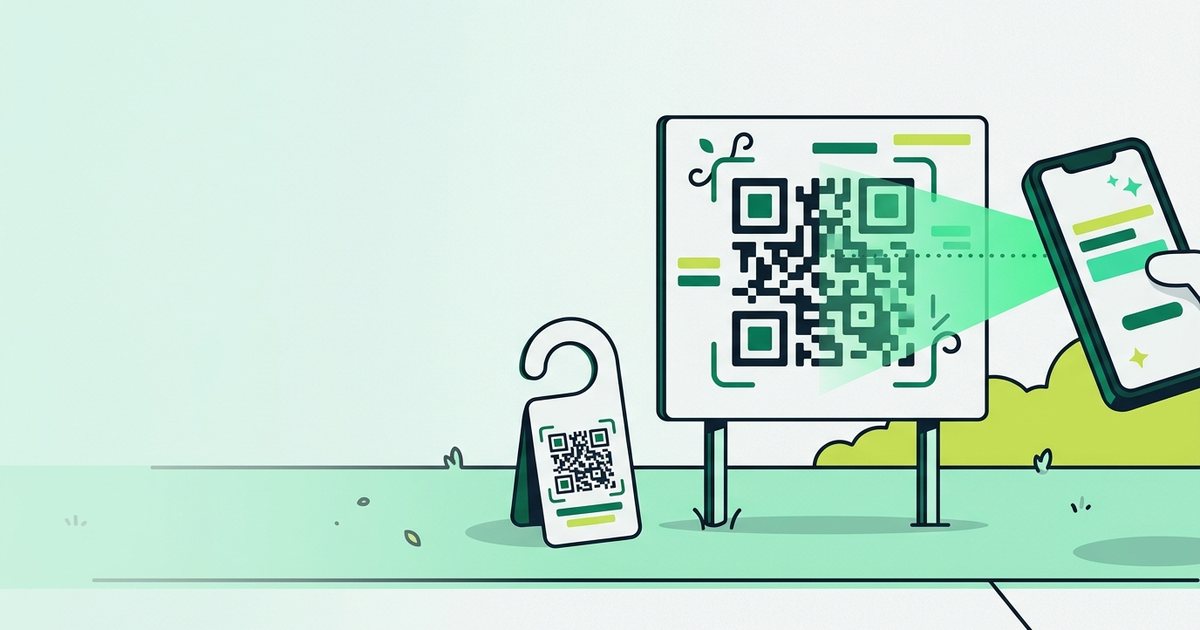
Step 1: Make your Google review QR code
By the end of this step, you'll have your code saved as an image file. These steps follow Google's help page on review links and QR codes, checked on November 17, 2026.
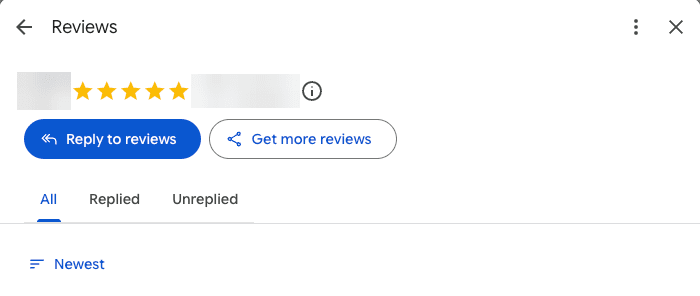
Open your reviews.
Go to your Business Profile and select Read Reviews.
Ask for more reviews.
Select Get more reviews.
Open the share box.
Select the Share icon. The box holds your review link and your QR code. The Copy icon copies the link.
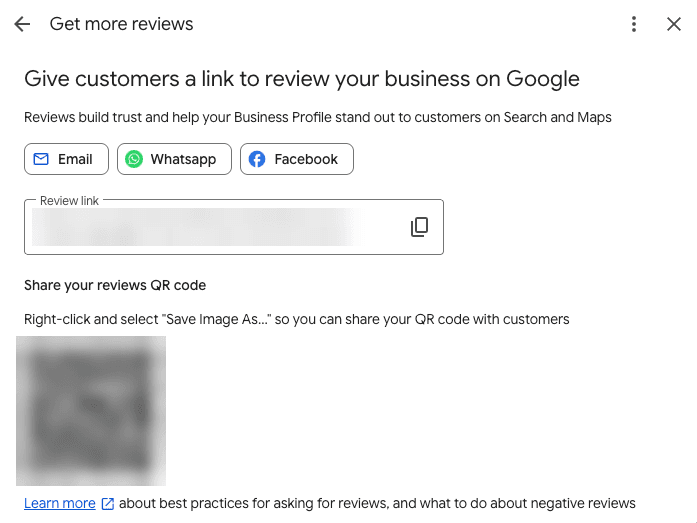
Save the code.
Right-click the QR code and select Save image as. Then open the file. If it shows the code, this step is done.
There are three ways to make the code. One of them is our free tool.
| Way | Where you make it | What you start from | Worth knowing |
|---|---|---|---|
| Google's own code | A computer browser only | Your Business Profile | Google's page names no price. |
| Our free tool | A phone or a computer browser | Your business name | No sign-up. You get a PNG, an SVG and a sign to print. |
| Another QR code generator | Depends on the generator | The review link from Google's share box | Ask two things before you print. Does the code hold Google's link, or send scans through the company's own link first? What happens to printed codes if you stop paying? |
Our tool makes a static code. It holds Google's review link itself.
Step 2: Put the code on paper and the link on screens
Google suggests a few spots for the link or code. It names receipts, thank-you emails, the end of a chat, and a printed code in your store (Google's help page on review links and QR codes, checked on November 17, 2026). On a home-service job, those spots look like this:
- The invoice or receipt you hand over. It stays with the customer after your truck leaves.
- The thank-you or invoice email. Put your review link next to the code. Someone reading the email on a phone can tap the link. Scanning a code on the same screen is awkward.
- The end of a text with your customer. Send the link itself, not a picture of the code, for the same reason. Google also names email, WhatsApp and Facebook posts as ways to send a review request.
- A leave-behind card or job folder. Leave it with the paperwork on the kitchen counter.
- A sticker on the unit you serviced. Put it on the water heater or the furnace. It's there the next time someone looks at the unit.
- The office counter. If customers come in to pay, print the code and set it where they pay.
Keep the ask the same for every job. Our link generator has words for what to say when you ask.
Step 3: Print it so phones can read it
By the end of this step, you'll have a print file that follows the rules of the code's maker. The rules come from DENSO WAVE, the company that made the QR code. Size isn't on this list. Step 4 checks it with a real scan.
Keep the white border.
The maker asks for a blank margin four modules wide on every side (DENSO WAVE on the code area, checked on November 17, 2026). A module is one of the small squares in the code. Don't crop the border or print over it.
Print black on white.
The maker's FAQ says to "print out your QR Codes with black on a white background" (DENSO WAVE's FAQ).
Put your logo next to the code.
The maker warns users to be careful about deforming a code by laying an illustration over it. So set your logo beside the code, not on top of it.
Choose a higher error correction level for dirty spots.
A QR code can still be read when part of it is dirty or damaged, up to a point. The maker says level Q or H may be chosen where codes get dirty, like a factory (DENSO WAVE on error correction). If your generator offers a choice, we'd pick Q or H for a sticker on a furnace.
Step 4: Scan it on an iPhone and an Android before you print a stack
By the end of this step, you'll know the code opens your review page on both kinds of phone. Print one proof first. Scan it from where your customer will stand. Print the stack only after both phones open the page. On an iPhone or a Pixel, the camera app reads the code, so your customer doesn't need another app. The iPhone steps come from Apple's help page, published September 14, 2026. The Pixel steps come from Google's Pixel help page, checked on November 17, 2026.
| Phone | How to scan | What you should see |
|---|---|---|
| iPhone | Open the Camera app. Hold the phone so the code shows on the screen, then tap the link. | Your Google review page opens. |
| Pixel | Point the camera at the code, with the whole code on the screen. You don't need to take a picture. Google Lens works too. | Your Google review page opens. |
Google's page covers Pixel phones only. Other Android phones can work a little differently.
A QR code waits for the customer
A QR code works only when someone points a phone at it. In our view, that's its limit. The customer has to notice the code, have a free minute and be signed in to a Google Account. Google requires that last part (Google's tips to get more reviews, checked on November 17, 2026). Once your truck leaves, nothing reminds them.
At the door, they say "I'll give you 5 stars." Then the day moves on, and the code sits on the counter.
A text reaches them later. With ReviewsOS, the text goes out when a job is marked done in your CRM. It carries a photo of someone on your team holding a whiteboard with the customer's name on it. It also carries your review link. It usually goes out within an hour of the close, and only during set hours. We recommend one request right after service and up to two gentle reminders. They stop once the customer reviews.
So keep the code too. It works on paper, at the counter and on the invoice. The text works after you've gone.
No outside study we could check measures how many reviews a printed code brings. One survey asked how customers like to be asked. GatherUp surveyed more than 1,000 US consumers in August 2025 (GatherUp's Beyond the Stars 2025, read November 17, 2026). People named the ways of asking they find most acceptable, and they could name more than one. 53% named email, 49% a face-to-face ask at the time of service, and 33% a text. Another 33% were fine with requests on printed materials such as receipts, flyers and notes. The survey's page doesn't mention QR codes.
We compare a link and a code in Google review link vs QR code. Or you can see how it works.
I built ReviewsOS for my own insulation company first. These are our own numbers, not figures from an outside study.
About 30% of new customers typically post a review
Over 50% at some companies
35 Google reviews in 14 days from past customers, on my first run
Google's rules when you ask with a QR code
Google lets you ask. It says you can share a review request link or QR code to encourage reviews (Google's page on managing reviews, checked on November 17, 2026). Its policy lets a business ask for reviews of a genuine experience, without incentives (Google's review policy, checked on November 17, 2026). For a code, Google's rules mean:
- No reward for a review. No money, discount, free goods or free service in exchange for one. Google's help page on review links and QR codes calls this fake engagement and says it's strictly prohibited. A card that offers 10% off for a review breaks the rule.
- No pressure. Don't require or push anyone to leave a rating or write a review.
- No script for the review. Google says a business shouldn't ask for specific content in a review.
We ask every customer the same way. On a code, we'd print a plain line, like Review us on Google, with no ask for 5 stars.
Google review QR code questions
Is a Google review QR code free?
Google's help page on review links and QR codes names no price. Our QR code tool is free, with no sign-up and no email. The QR code itself needs no license: its maker says you don't need one to use it (DENSO WAVE's FAQ).
Does my customer need an app to scan it?
No. On an iPhone or a Pixel, the camera reads the code. Step 4 shows how to scan on each.
Does my customer need a Google account?
Yes. Google says a customer must be signed in to a Google Account to leave a review. They can set one up with an email address that isn't Gmail (Google's tips to get more reviews).
Can I put my logo on the code?
Put it beside the code instead. A logo in the middle of a code covers some of its squares. The maker warns about deforming a code by laying an illustration over it, as Step 3 says. Our tool's SVG is the code alone, dark on white, so a print shop can set your logo next to it.
Do I need a review stand or a tap card?
We'd skip one for jobs at the house. A stand sits on a counter, so it fits an office where customers come in to pay. At the house, the code goes on what you leave behind: the invoice, a card or a sticker on the unit. For the office counter, our free tool also makes a letter-size sign to print. Whatever you buy, we'd test it before you hand it out. Try it on an iPhone and an Android, as Step 4 does for a code.
Does a QR code help my Google ranking?
Reviews can help, and a code is one way to ask for them. Google says more reviews and positive ratings can help your local ranking. How many reviews you have is part of it too (Google's local ranking tips, checked on November 17, 2026). See how many 5-star reviews it takes to reach your goal.
Sources
- Create a Google link or QR code to request reviews, Google Business Profile Help, read November 17, 2026
- Tips to get more reviews, Google Business Profile Help, read November 17, 2026
- Manage customer reviews, Google Business Profile Help, read November 17, 2026
- Prohibited & restricted content (Maps User Generated Content Policy), Google, read November 17, 2026
- Tips to improve your local ranking on Google, Google Business Profile Help, read November 17, 2026
- Scan QR codes with your Pixel phone, Pixel Phone Help, read November 17, 2026
- Scan a QR code with your iPhone or iPad, Apple Support, published September 14, 2026, read November 17, 2026
- Point for determining the code area, DENSO WAVE, the maker of the QR code, read November 17, 2026
- FAQ, DENSO WAVE, read November 17, 2026
- Error correction, DENSO WAVE, read November 17, 2026
- Beyond the Stars 2025, GatherUp, a survey of more than 1,000 US consumers in August 2025, read November 17, 2026
We’ll get you 10 Google reviews for free to prove it works.
We start with the customers you've already served.
No card needed, First reviews in 48hr, 15-min setup call
Or see it first: get the text your customers will get.