Guide
How to get more Google reviews: 7 ways for a home-service company
Most of them you can start today with your review link and your phone.
No card needed, First reviews in 48hr, 15-min setup call

To get more Google reviews, send your review link to every customer on every finished job. Send it by text once the job is marked done. Put the customer's name and a photo in the text, so it gets noticed. Follow up twice at most, then stop. Then go back to your past customers, a few at a time.
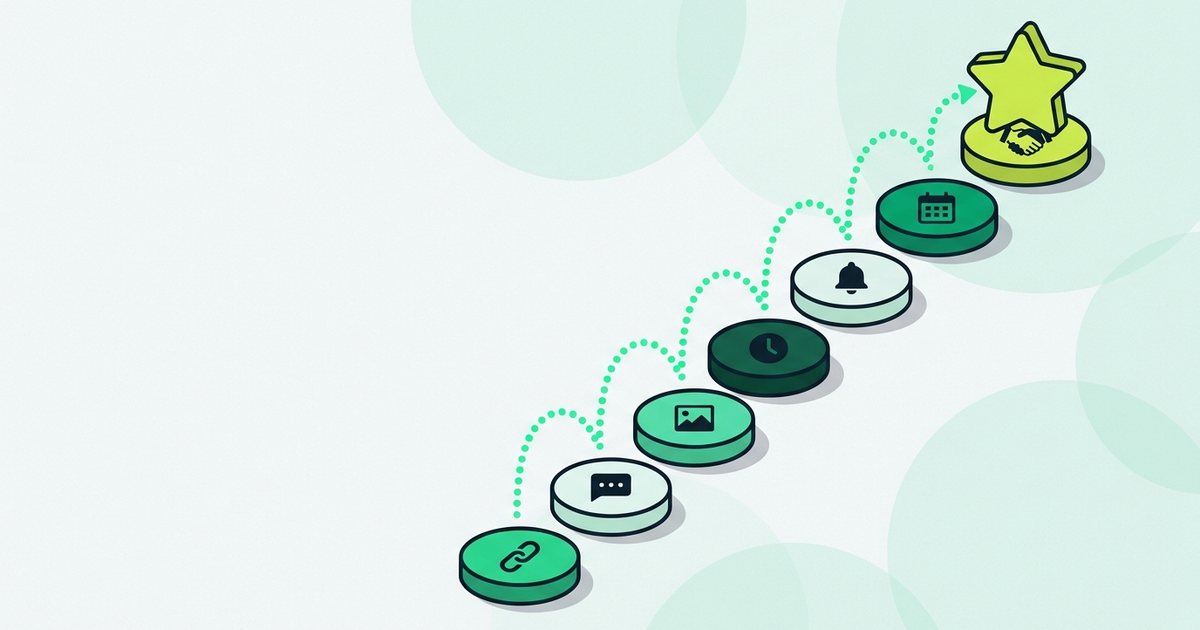
Why you keep asking once you have reviews
Having reviews already doesn't mean you're done. In our view, a steady flow of new reviews matters more than a big total from years ago. It's what we believe keeps a company climbing on Google Maps.
Many customers check how recent your reviews are. BrightLocal surveyed 1,002 US adults through a SurveyMonkey panel for its Local Consumer Review Survey 2026. Of them, 74% said they look for reviews written in the last three months (BrightLocal's Local Consumer Review Survey 2026, published February 11, 2026, read on November 17, 2026).
Google's own line is about the count. It says more reviews and positive ratings can help your local ranking (Google's local ranking tips, checked on November 17, 2026).
If you don't have any reviews yet, start by getting your first Google reviews. For the map itself, see our guide on reviews on Google Maps. Our guide on how to get Google reviews walks through the whole process from the start.
1. Get your review link ready
Do these once, before you ask anyone.
Verify your profile and fill it in.
Google says a verified business is more likely to show up in search results. Complete, accurate info helps too (Google's local ranking tips). You also have to verify before you can reply to reviews (Google's page on managing reviews, checked on November 17, 2026).
List the jobs you do as services.
When a customer reviews a service business, Google may ask what work you did. The choices come from your service list, your website or a standard list for your kind of business. If a job is missing, add it to your service list (Google's page on reviews for service businesses, checked on November 17, 2026).
Copy your review link.
In your Business Profile, select Read Reviews, then Get more reviews, then Copy (Google's page on review links, checked on November 17, 2026).
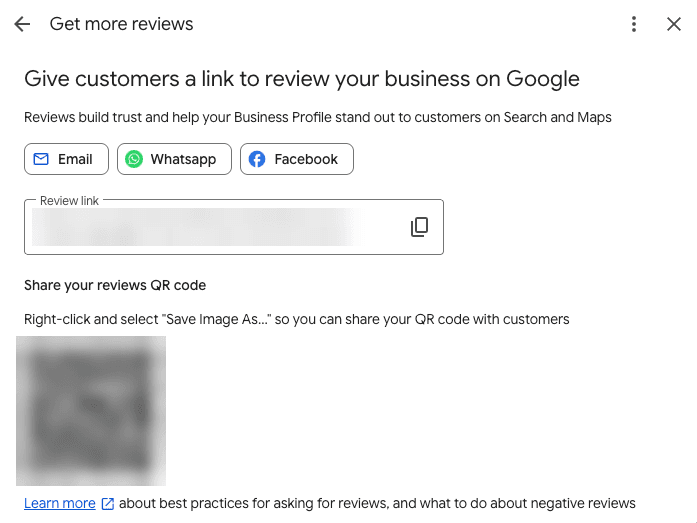
Need a QR code? Make it on your phone.
Google makes review QR codes only in a computer browser, not on a phone (Google's page on review links). Our free Google review QR code generator works in your phone's browser. Type your business name and download the code.
2. Ask every customer by text, not just at the door
At the door, customers say "I'll give you 5 stars." Then they never do. A text with your link waits on their phone until they have a minute.
We ask every customer the same way. Our Google review link generator has more on what to say when you ask. Put these in every text:
- The customer's first name.
- One line about the job you did.
- Your review link.
3. Send the text when the job is marked done
Tie the ask to something you already do: closing the job in your job software. Then nobody has to remember to ask.
By hand, keep one rule. Every job marked done gets the text that same day.
With us, the text goes out on its own. It usually goes out within an hour of the job closing, and only during set hours. See the CRMs and job software we connect to.
4. Put the customer's name and a photo in the text
A review request is easy to ignore. So the text has to get noticed first. Then it asks.
Our text leads with a photo. It shows someone from your company holding a whiteboard with the customer's name on it. In our view, the name on the whiteboard is what makes the customer stop and look.
You can do the same thing by hand. Write the customer's name on a whiteboard, take the photo, and send it with your link. That's one photo per job.
5. Follow up twice at most, then stop
One text is easy to miss on a busy day. We recommend one request right after service and up to two gentle reminders. That's our practice. The Google pages in our Sources set no number of reminders.
- Request. The first text goes out right after the job.
- Reminder 1. Sent if no review comes in.
- Reminder 2. Sent if there's still no review.
- Stop. No more texts after a review, or after the second reminder.
6. Text your past customers, a few at a time
The jobs already in your job software can still bring reviews. Those customers know your work.
I built ReviewsOS for my own insulation company first. My first run there went to past customers. It brought 35 Google reviews in 14 days.
Don't send those texts all on one day. We spread them out so your profile doesn't jump far above its usual pace. That's our caution, not a Google rule. Check your review pace next to two competitors.
7. Put your link on the invoice and in your emails
The text does most of the work. Paper and email back it up.
Google suggests putting your link on receipts, in thank-you emails and in print. It also names email, WhatsApp and Facebook posts as ways to send it (Google's page on review links). For a home-service company, these spots fit:
- Your invoice or receipt, with the link or a QR code.
- Your thank-you email after the job.
- A card you leave behind, with the QR code from way 1 on it.
What each way takes, done by hand
All seven cost little or nothing to do by hand. The real cost is your time.
| Way | Once or every job | What it takes by hand |
|---|---|---|
| 1. Get your review link ready | Once | Your Business Profile, and a computer or a free tool for a QR code |
| 2. Ask every customer by text | Every job | Your phone and your review link |
| 3. Send it when the job is marked done | Every job | A daily look at the jobs marked done |
| 4. Add the name and a photo | Every job | A whiteboard and your phone |
| 5. Follow up twice at most | Each job with no review yet | Up to two more texts, then stop |
| 6. Text past customers | Once, spread over days | Your past job list and a few texts a day |
| 7. Link on the invoice and emails | Once | Adding the link to your invoice and your email |
Do it by hand today: get your review link and make a QR code. Then see how many 5-star reviews you need.
Where these seven ways come from
They come from Google's own help pages, read on November 17, 2026, and from my own insulation company. None of the seven comes from an outside study. We make review-request software, and ways 3 to 6 are what it does.
What Google bans when you ask for reviews
Google's review policy is long. These are the lines that matter when you ask (Google's review policy, checked on November 17, 2026):
- No payment for a review. That means no money, discount, free goods or free service in exchange.
- Don't require or pressure anyone to leave a rating or review while on the premises.
- No reviews from people with a conflict of interest, such as current or former employees, family or competitors.
- No review that isn't from a real experience (Google's page on review links).
- No fake reviews. Google says its systems constantly monitor for unusual patterns in what people post on Maps (Google's post on how Maps protects against fake content, November 22, 2023, read on November 17, 2026). Google removes fake reviews, and it can stop a profile from getting new reviews for a set period. It can also show people a warning that fake reviews were removed (Google's page on Business Profile restrictions, checked on November 17, 2026).
When a new review shows up, and replying to it
A new review may not show up right away. Google checks each one against its policies, and that can take a few days (Google's page on missing or delayed reviews, checked on November 17, 2026). Customers on older phones or software might have trouble posting. Google suggests they update their Maps app.
Your score is the average of all your ratings. After a new review, it can take up to 2 weeks to update (Google's page on review scores, checked on November 17, 2026). See how many 5-star reviews it takes to reach your goal.
Reply to the reviews you get. Google calls that best practice (Google's tips to get more reviews, checked on November 17, 2026). It also says positive reviews and helpful replies can help your business stand out (Google's local ranking tips).
How we run ways 3 to 6 for you
When a job is marked done in your CRM, we text that customer. The text carries the photo with their name and your review link. Up to two reminders follow if no review comes in. Past customers get the text a few at a time.
Setup is one 15-minute call. We connect to all the major CRMs, such as Jobber, Housecall Pro, ServiceTitan, QuickBooks and more. Anything else that can send a webhook or connect through an API works too. See how it works.
Once your CRM is connected, the texts start. On average, the first new Google reviews come in about 48 hours after that. These are our own numbers.
About 30% of new customers typically post a review
Over 50% at some companies
15 min one setup call
What the photo text costs
$150 a month covers up to 100 review requests. A reminder doesn't count as one of the 100. If you send more than 100, talk to us.
Your first 10 Google reviews are free, and we don't ask for a card. There's no annual contract, and you can cancel anytime. See pricing.
Questions owners ask about getting more Google reviews
What's the fastest way to get more Google reviews?
Start with your past customers, since those jobs are already done. Text them in small batches over several days. At the same time, text every new customer once the job is marked done. Nobody can honestly promise you a number of reviews.
How many reviews does it take to raise my rating?
There's no set number. Your score is the average of all your ratings on Google. So it depends on how many reviews you have now and what your score is. The more reviews you have, the more new 5-star reviews it takes to move it.
Can I pay for Google reviews?
No. Google bans offering free or discounted goods or services in exchange for reviews (Google's tips to get more reviews). Its review policy also bans reviews that were paid for, directly or in kind (Google's review policy).
Is there a Google 20% rule for reviews?
The Google help pages in our Sources name no 20% rule for reviews. If someone quotes one, ask them for Google's page. The one thing we watch is pace. Past customers get the text a few at a time, as in way 6.
Does my customer need a Google account to leave a review?
Yes. Google says customers must be signed in to a Google Account to leave a review (Google's tips to get more reviews).
Sources
- Tips to get more reviews, Google Business Profile Help, read November 17, 2026
- Create a Google link or QR code to request reviews, Google Business Profile Help, read November 17, 2026
- Prohibited & restricted content (Maps User Generated Content Policy), Google, read November 17, 2026
- Tips to improve your local ranking on Google, Google Business Profile Help, read November 17, 2026
- Understand review scores for local places & businesses, Google Business Profile Help, read November 17, 2026
- Manage customer reviews, Google Business Profile Help, read November 17, 2026
- About reviews for service businesses, Google Business Profile Help, read November 17, 2026
- About missing or delayed reviews, Google Business Profile Help, read November 17, 2026
- Business Profile restrictions for policy violations, Google Business Profile Help, read November 17, 2026
- How Google Maps protects against fake content, Google, The Keyword blog (Christina Wichiencharoen, Product Manager, Google Maps), published November 22, 2023, read November 17, 2026
- Local Consumer Review Survey 2026, BrightLocal (Rosie Murphy), published February 11, 2026, survey of 1,002 US adults through a SurveyMonkey panel, read November 17, 2026
We’ll get you 10 Google reviews for free to prove it works.
We start with the customers you've already served.
No card needed, First reviews in 48hr, 15-min setup call
Or see it first: get the text your customers will get.