Jobber integration
Jobber Google reviews from the jobs you close
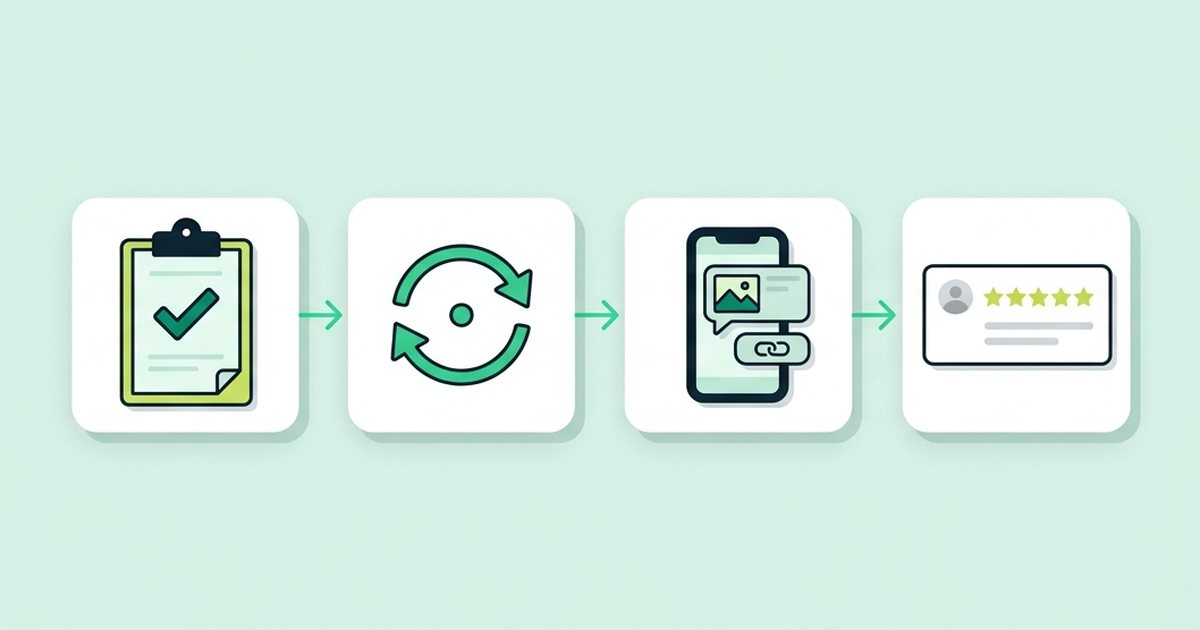
You pick what starts the review request: a job closed in Jobber, or its invoice paid. Then ReviewsOS texts the customer a photo with their name on a whiteboard, and your Google review link.
No card needed, First reviews in 48hr, 15-min setup call

Jobber's own way to get Google reviews is called Reviews. Jobber's help page says it comes as part of the Marketing Suite. You connect a verified Google Business Profile under Marketing, then Reviews, and pick when it asks. With ReviewsOS, a Jobber admin signs in once. Then closed jobs or paid invoices start our photo text.
Two ways to get Google reviews from Jobber
Jobber's side comes from its own help and pricing pages.
| Jobber's own Reviews | ReviewsOS with Jobber | |
|---|---|---|
| What you need | Reviews, part of Jobber's Marketing Suite, which its pricing page lists as an add-on. And a verified Google Business Profile. | A ReviewsOS account and a Jobber admin who signs in once. |
| What starts the ask | You pick: a job closes, a visit is completed, or an invoice is paid. | You pick: the job is closed, closed and paid, or the invoice is paid. |
| What your customer gets | A text, an email, or both. The help page mentions no photo. | A text that opens with the whiteboard photo, then asks for the review. |
| Reminders | Up to two, 3 and 5 days later at 1:30 PM, if the customer doesn't click the link. | We recommend one request right after service and up to two gentle reminders. The reminders stop once the customer reviews. |
| The same customer later | One request per client every 6 months, at most. | Each customer is asked once, even if they book you again. |
Most review requests get ignored.
Your customer sees a photo with their name on it
Our text opens with a photo of someone from your company holding a whiteboard with the customer's name. The photo gets their attention first. Then the text asks for a Google review and gives your link.
See how the review request photo works, or make your Google review link for free.
Jobber's Reviews help page shows its default text. It opens: "Hi [Client First Name], we have received [payment amount] for our recent work." Changing it takes a dedicated phone number, and the reminder text can't be changed.
Jobber's page also says a job closed between 9 PM and 9 AM gets its first ask by email only. By default, we check your Jobber every 15 minutes. Texts only go out during set hours, never in the middle of the night. If a job is closed outside those hours, its text waits.
You sign in to Jobber, and there's nothing to paste
The connection is made once, on a 15-minute setup call. We set up the Jobber integration with you.
A Jobber admin joins the call.
Have someone with admin access to your Jobber on the call. Jobber's developer docs say a company admin must approve an outside app.
Pick Jobber in ReviewsOS.
ReviewsOS sends you to Jobber. If you aren't signed in there, Jobber asks you to log in first.
Click Allow Access.
Jobber shows what ReviewsOS asks to see. Once you allow it, you're back in ReviewsOS. There's no key to copy and nothing to paste.
Pick what starts the text, then save.
In the Set up job completion window, pick one of the three moments below. Then click Save & activate.
Send one photo for the whiteboard.
You send us one photo of someone on your team. We add the whiteboard and write each customer's name on it.
Use a Jobber admin login that stays with your company
Jobber's developer docs say the connection ends if the admin who set it up is deactivated. A plan downgrade or a closed account ends it too.
Then ReviewsOS can't see new jobs until an admin signs in to Jobber again. We recommend an admin login that won't be turned off when someone leaves.
ReviewsOS reads your Jobber and doesn't write to it
ReviewsOS asks Jobber to read three things: your clients, jobs and invoices. Write access is off on all three, so it can't change them.
| In your Jobber | What ReviewsOS reads there |
|---|---|
| Clients | Name and contact details, so the text reaches the right person. |
| Jobs | When the job was closed, plus its total and balance. |
| Invoices | The balance, to see when an invoice is paid in full. |
Close Job or a paid invoice: you pick what starts the text
A Jobber job has no completed status. ReviewsOS counts a job as done when someone closes it with Close Job, under More Actions. Jobber's help page on jobs says creating an invoice does not close the job. We've found that taking a payment doesn't change the job record either. So ReviewsOS checks your invoices to see what's paid.
- If your jobs get closed when the work is done, pick Job completed. It's the default.
- If you'd rather wait for the money, pick Completed and paid. It waits for a closed job and an invoice balance of $0.
- If your jobs stay open after the customer pays, pick Paid (balance cleared). It starts the text once the invoice balance reaches $0.
Change your pick later, and only new jobs follow it. We ask every customer the same way.
Where Jobber asks for reviews on its own
If a Jobber ask is still on, a customer can get two review asks per job. We switch Jobber's review asks off with you on the setup call. Jobber's Reviews help page warns about this too. If you used job follow-ups for reviews, it says you may want to turn them off.
| Jobber's ask | What it sends | Where it is in Jobber |
|---|---|---|
| Reviews, in the Marketing Suite | Review asks by text, email or both, with reminders | Marketing, then Reviews |
| Job follow-ups | An email each time a job is closed, on select plans | The gear icon, Settings, Emails and Text Messages, then the Jobs section |
If your follow-up email asks for a review, we turn that ask off with you too.
Customers already in your Jobber get the text in a campaign
When you connect, ReviewsOS reads in the jobs already in your Jobber. That sends no text to those customers. Automatic texts start with new jobs, once that first read is done.
Start a campaign to past customers, and they get the text too. It goes out a few at a time, so your reviews don't jump far above your usual pace. Until you start one, we don't text them.
I built ReviewsOS for my own insulation company first. Our first run there went to past customers and brought 35 Google reviews in 14 days. My company runs on a different CRM.
What ReviewsOS costs on top of Jobber
$150 a month covers up to 100 review requests. If you send more than that, talk to us. A reminder doesn't count as one of your 100 requests. Neither do texts to your past customers.
Your first 10 Google reviews are free, and we don't ask for a card. There's no annual contract, and you can cancel anytime. See the pricing page.
The numbers below are ours, not from an outside study.
About 30% of new customers typically post a review
Over 50% at some companies
About 48 hours until the first new Google reviews, on average, once the texts start
Questions Jobber users ask about Google reviews
Do I need Jobber's Marketing Suite?
Not for ReviewsOS. Jobber's help page says its own Reviews comes as part of the Marketing Suite. ReviewsOS doesn't use Jobber's Reviews. It reads your clients, jobs and invoices, then sends its own text.
Can the review request start when the job is complete?
Yes. Job completed, the default, starts the text when someone uses Close Job in Jobber. If you'd rather wait for the money, pick Completed and paid, or Paid.
Do the reviews show up on our Google profile?
Yes. The customer posts the review on your Google Business Profile, through the link in our text. Google says they must be signed in to a Google Account. They can set one up with a non-Gmail address (Google's tips to get more reviews, checked on November 18, 2026).
What if we're not on Jobber?
ReviewsOS works with all the major CRMs, such as Jobber, Housecall Pro, ServiceTitan, QuickBooks and more. Anything else that can send a webhook or connect through an API works too. See the list of CRMs ReviewsOS connects to.
Sources
- Reviews | Marketing Tools, Jobber Help Center, updated October 29, 2026, read November 18, 2026
- Job basics, Jobber Help Center, updated November 12, 2026, read November 18, 2026
- Job follow-ups, Jobber Help Center, updated May 14, 2025, read November 18, 2026
- App Authorization, Jobber Developer Center, read November 17, 2026
- Jobber pricing, Jobber, read November 18, 2026
- Tips to get more reviews, Google Business Profile Help, read November 18, 2026
We’ll get you 10 Google reviews for free to prove it works.
We start with the customers you've already served.
No card needed, First reviews in 48hr, 15-min setup call
Or see it first: get the text your customers will get.