Guide
How to get Google reviews for your business, from a free profile to the first request
Set up your free Google profile once. Then send your review link after every job.
No card needed, First reviews in 48hr, 15-min setup call

To get Google reviews for your business, add or claim your free Google Business Profile and verify it. Then copy your review link from the profile. Send that link to every customer when the job is done. If no review comes in, we recommend up to two reminders, then stop. Never pay for a review or give anything in return for one. Google bans that.
Step 1: Add or claim your free Google Business Profile
Your Business Profile is where your Google reviews show. Google shows them next to your profile in Maps and Search (Google's tips to get more reviews). Google says creating a profile is free (Google Business Profile). These steps follow Google's page on adding or claiming a profile, checked on November 17, 2026.
Look for your business on Google Maps.
If it's already there, claim it instead of adding a new one. On a computer, search Maps for your business name and city. Select Claim this business, then Manage now.
Or start a new profile.
Go to business.google.com/add and click Add your business to Google.
Fill in your details.
Follow the on-screen instructions to add your business info.
Pick how to verify.
Either way, Google then asks you to choose a verification option. Step 2 covers the rest.
Step 2: Verify your profile and set your service area
Verifying makes the profile yours. Google says that when you verify, you gain ownership of your Business Profile (Google's page on verifying your business). You also have to verify before you can reply to reviews (Google's page on managing reviews).
Next, set your service area. Google has a name for a company that goes to its customers: a service-area business. It visits or delivers to customers, but doesn't serve them at its own address. Plumbers are one of Google's own examples (Google's page on service areas).
If customers don't come to your address, Google says to remove it from your profile. Then add the areas you serve.
Google's pages give these details for verifying and for service areas.
| Part of the setup | What Google says |
|---|---|
| Ways to verify | Phone or text, email, live video call or mail. Google picks which ones you can use. |
| Google's verification review | Up to 5 business days. On rare occasions, it takes longer. |
| A code sent by mail | Most codes arrive within 14 days. |
| Your business address | Remove it if you don't serve customers there. |
| Service areas | Up to 20, set by city, postal code or other area. |
From Google's pages on verifying your business and service areas, checked on November 17, 2026.
Once Google verifies you, Step 3 takes a minute. Copy the link from your profile, or make your free Google review link.
Step 3: Copy your Google review link
Your review link is what you send a customer so they can review you. Google lets you share a review request link or a QR code (Google's page on managing reviews). These steps follow Google's page on review links, checked on November 17, 2026.
Open your reviews.
On your Business Profile, select Read Reviews. That's also where you read what customers wrote.
Find the link.
Select Get more reviews.
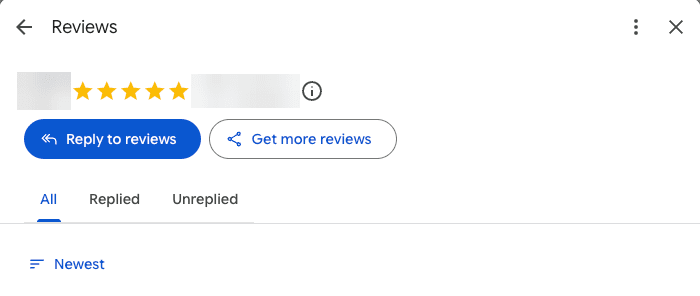
Copy it.
Select Copy. For a QR code to print, select Save image as... instead.
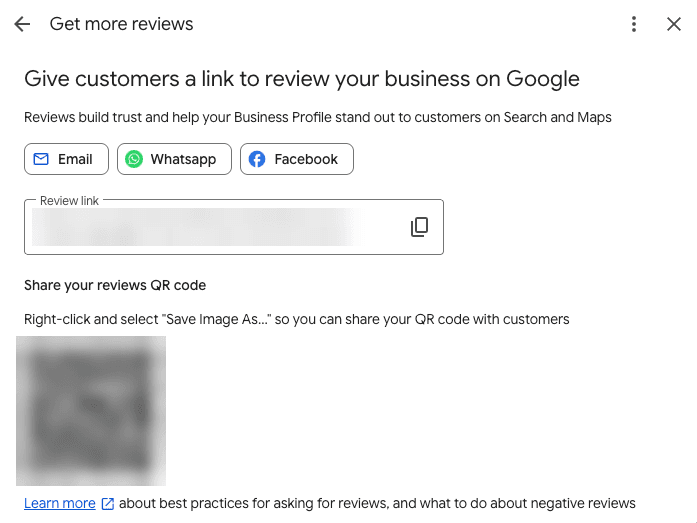
For now, Google's review QR code can only be made in a computer browser, not on a phone. You can also make a review QR code with our free tool.
Put the link where customers will see it. Google suggests receipts, thank-you emails and the end of a chat. It also names email, WhatsApp and Facebook posts (Google's page on review links). For a company that works at the customer's house, we'd add two spots. One is the text after the job. The other is the QR code on your invoice.
Step 4: Ask every customer when the job is done
Send your review link by text once the job is marked done in your job software. That's our practice. The Google help pages we read don't set a time to ask.
We ask every customer the same way.
Google allows asking for a review of a real experience. You just can't offer anything for it, or try to steer the rating or the words (Google's review policy, checked on November 17, 2026).
If you text by hand, we'd open with the customer's name and the job you did. Put the link last. For the words to use, see what to say when you ask. Use that order each time you ask for Google reviews by text.
We see it this way:
Most review requests get ignored.
Step 5: Send up to two reminders, then stop
One text is easy to miss on a busy day. We recommend one request right after service and up to two gentle reminders. The follow-ups stop once the customer reviews, so nobody who posted gets asked again.
Google suggests reminding customers to leave reviews (Google's tips to get more reviews, checked on November 18, 2026). That page doesn't say how many reminders to send or when, so this part is our call. Here's how it runs with ReviewsOS:
- Job done. The job is marked done in your job software.
- Text sent. Usually within an hour, and only during set hours, never in the middle of the night.
- Reminders. Up to two, if no review comes in.
- Review posted. That's the last text.
- Score updated. Google says this can take up to 2 weeks (Google's page on review scores).
What Google allows and bans when you ask
You're allowed to ask for Google reviews. You're not allowed to pay for them. Google's policy lists reviews paid for with money, goods or services as fake engagement. It says: "Fake engagement is not allowed and will be removed."
| Allowed | Not allowed |
|---|---|
| Ask for a review of a real job | Pay, give a discount, or give free goods or services for a review |
| Send your review link or QR code | Require or pressure a customer to leave a rating or write a review while they're on the premises |
| Let the customer write what they want | Ask for certain words in the review |
From Google's review policy and Google's tips to get more reviews, checked on November 17, 2026.
To stay inside those lines, ask every customer the same way and offer nothing for a review. Start with your free Google review link.
How more reviews help you on Google
Google says local results are mainly based on relevance, distance and popularity. Its page calls that last one prominence, meaning how well-known a business is. It's based partly on how many reviews you have (Google's local ranking page).
Google says more reviews and positive ratings can help your local ranking. It also says: "There's no way to request or pay for a better local ranking on Google."
Your review score is the average of all your ratings on Google (Google's page on review scores). Don't fear an honest 4-star review. Google says a mix of positive and negative feedback often feels more trustworthy (Google's tips to get more reviews).
Our view goes one step further. A steady pace of new reviews matters more than a big total from years ago. Having reviews already doesn't mean you're done.
One outside study points the same way. Sterling Sky, a local search agency, published it with Places Scout on November 5, 2025. It studied the top ten map results for five near-me searches, among them plumber, HVAC and garage door repair. That came to 8,186 businesses in 200 cities. The study found that how many reviews a business got this month mattered more for ranking than its total. It shows a link between the two, not proof of cause. We read it on November 17, 2026.
Check your review pace, free, or see how many 5-star reviews it takes to reach your goal. For the whole topic, read the full guide to getting Google reviews.
Asking after every job without having to remember
The steps above work by hand, as long as someone sends the text after every job. ReviewsOS sends it for you. When a job is marked done in your CRM, we text that customer. The text has a photo of someone on your team holding a whiteboard with the customer's name. It also has the link to your Google review page. The photo gets the customer's attention first. Then the text asks for the review.
Setup is one 15-minute call. Then it runs by itself. ReviewsOS works with all the major CRMs, such as Jobber, Housecall Pro, ServiceTitan, QuickBooks and more. Anything else that can send a webhook or connect through an API works too. See how it works, or see which CRMs connect.
Once your CRM is connected, the texts start. On average, the first new Google reviews come in about 48 hours after that.
I built ReviewsOS for my own insulation company first. My first run went to past customers. It brought 35 Google reviews in 14 days. We text past customers a few at a time.
These are our own numbers, not figures from an outside study.
About 30% of new customers typically post a review
Over 50% at some companies
15 min one setup call
Questions owners ask
How much does it cost to get Google reviews?
Google says creating a Business Profile is free (Google Business Profile). Our review link and QR code makers are free too. Don't pay for reviews: Google's policy bans it. With ReviewsOS, $150 a month covers up to 100 review requests. If you send more than that, talk to us. A reminder doesn't count as one of the 100. Your first 10 Google reviews are free, and we don't ask for a card. There's no annual contract, and you can cancel anytime. See pricing.
How fast can a business get Google reviews?
Setup is the slow part. Google's verification review can take up to 5 business days (Google's page on verifying your business). If Google mails you a code, most codes arrive within 14 days. After that, reviews come as you finish jobs and ask. With ReviewsOS, the first new Google reviews come in about 48 hours on average after your CRM is connected. After a review posts, your score can take up to 2 weeks to update (Google's page on review scores).
Does a customer need Gmail to leave a review?
No. They need to be signed in to a Google Account. They can set one up with an email address that isn't Gmail (Google's tips to get more reviews).
My business is new. Where do I start?
Start with the same five steps. Then ask every customer, from your first job on. As a new business with no reviews yet, you can ask past customers too.
Sources
- Get Listed on Google: Google Business Profile, Google, read November 17, 2026
- Add or claim your Business Profile, Google Business Profile Help, read November 17, 2026
- Verify your business on Google, Google Business Profile Help, read November 17, 2026
- Manage your service areas for service-area & hybrid businesses, Google Business Profile Help, read November 17, 2026
- Create a Google link or QR code to request reviews, Google Business Profile Help, read November 17, 2026
- Tips to get more reviews, Google Business Profile Help, read November 17, 2026
- Manage customer reviews, Google Business Profile Help, read November 17, 2026
- Prohibited & restricted content (Maps user contributed content policy), Google, read November 17, 2026
- Understand review scores for local places & businesses, Google Business Profile Help, read November 17, 2026
- Tips to improve your local ranking on Google, Google Business Profile Help, read November 19, 2026
- We Analyzed 8,186 Businesses in 200 Cities. Here's What Actually Gets You Ranking for "Near Me" in 2025, Sterling Sky with Places Scout, published November 5, 2025, read November 17, 2026
We’ll get you 10 Google reviews for free to prove it works.
We start with the customers you've already served.
No card needed, First reviews in 48hr, 15-min setup call
Or see it first: get the text your customers will get.